
AxeOS explained: dashboard, settings and every reading on a Bitaxe
12 March 2026 · 14 min read · Updated on 26 September 2026

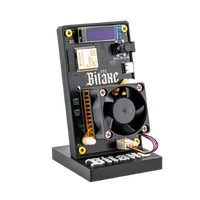
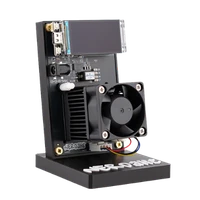
AxeOS is both the firmware and the web interface of the Bitaxe. It runs on the Bitaxe Gamma, the Copperzilla, the Bitaxe GT 801 and the Supra Hex 702. You open it in the browser and see everything the miner knows about itself: hashrate, temperatures, pool, settings. This article walks through AxeOS 2.15.3, the current version, page by page, with screenshots and the values that are normal. Nerdaxe, NerdQaxe and NerdOctaxe use their own interface called NerdOS; more on that at the end.
http://bitaxe.local or the IP address from the display, without a login and without an app. Four things matter on the dashboard: the hashrate is close to “Expected”, the error stays low, the shares rise and the chip sits around 60 °C. You rarely need the settings; a restart is only needed after changes to Wi-Fi, pool and display, not after clock, voltage or fan. Opening AxeOS: address, login and app
- Address: since AxeOS 2.15 you reach the miner by its name,
http://bitaxe.localout of the box. If you gave it another hostname, the address changes accordingly, for examplehttp://gamma-office.local. If that does not work, use the IP address from the display or from your router's device list. - Login: there is none. AxeOS has no password and no account. It is protected by only accepting requests from private home networks (addresses starting with 192.168, 10 or 172.16 to 172.31).
- App: there is no official app. The interface works in the browser on phone, tablet and computer.
- Page addresses: every page has its own address with a hash, for example
http://bitaxe.local/#/poolor#/settings. While the setup Wi-Fi is active, every page leads to the setup page.
Never expose the miner to the internet with port forwarding. If you want to check it on the go, a VPN to your own router is the better route. Requests arriving with addresses outside the private ranges, such as those Tailscale assigns, are refused by AxeOS.
The dashboard at a glance
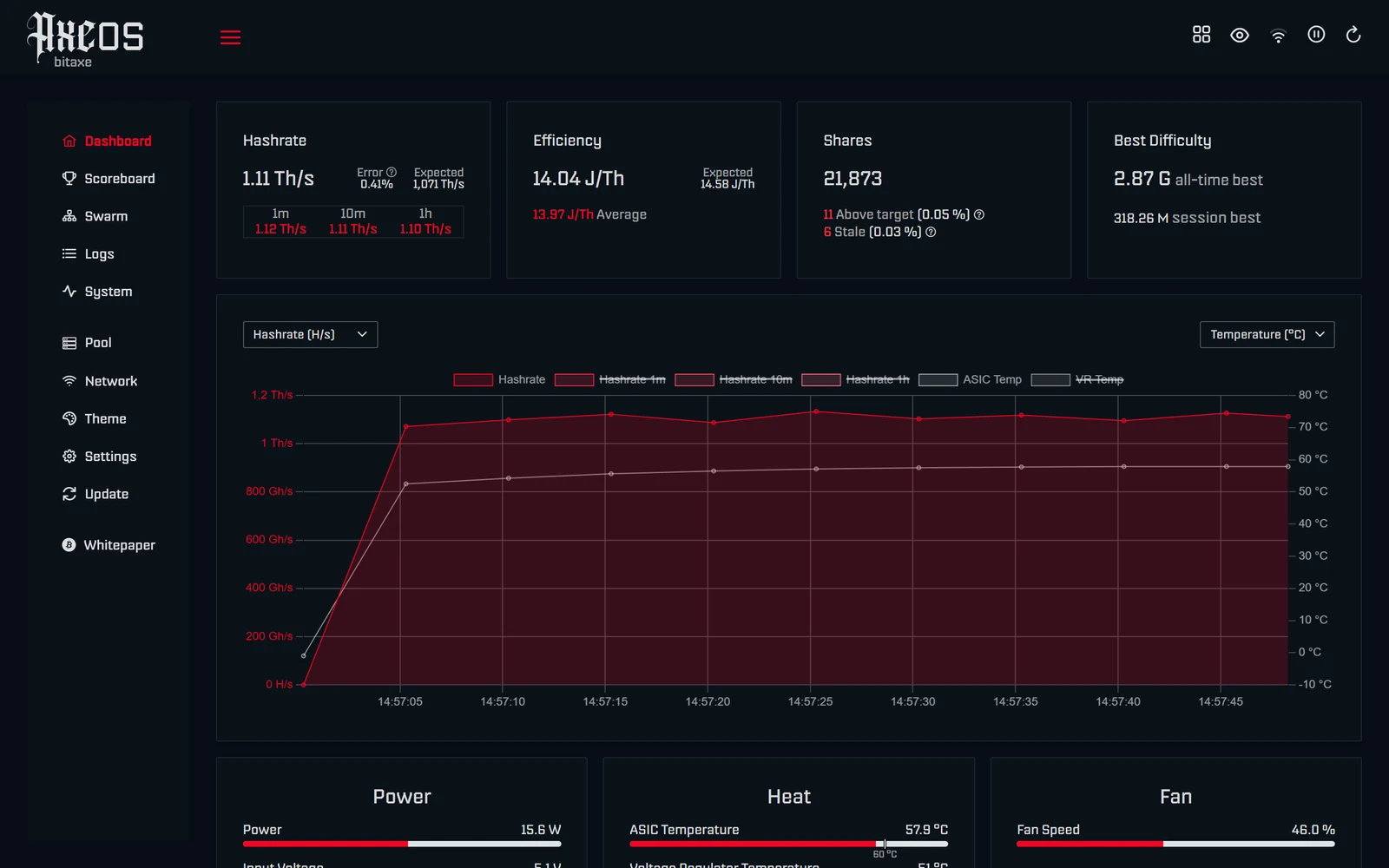
The dashboard consists of up to twelve cards: Hashrate, Efficiency, Shares and Best Difficulty at the top, then the chart, then Power, Heat and Fan, Pool, Block Header, Hashrate Registers and Misc. On a computer you can change the arrangement: the grid icon at the top right (“Edit Layout”) lets you move and hide cards, and “Wide View” uses the full screen width. The browser stores the layout, not the miner.
Hashrate, Efficiency, Shares and Best Difficulty
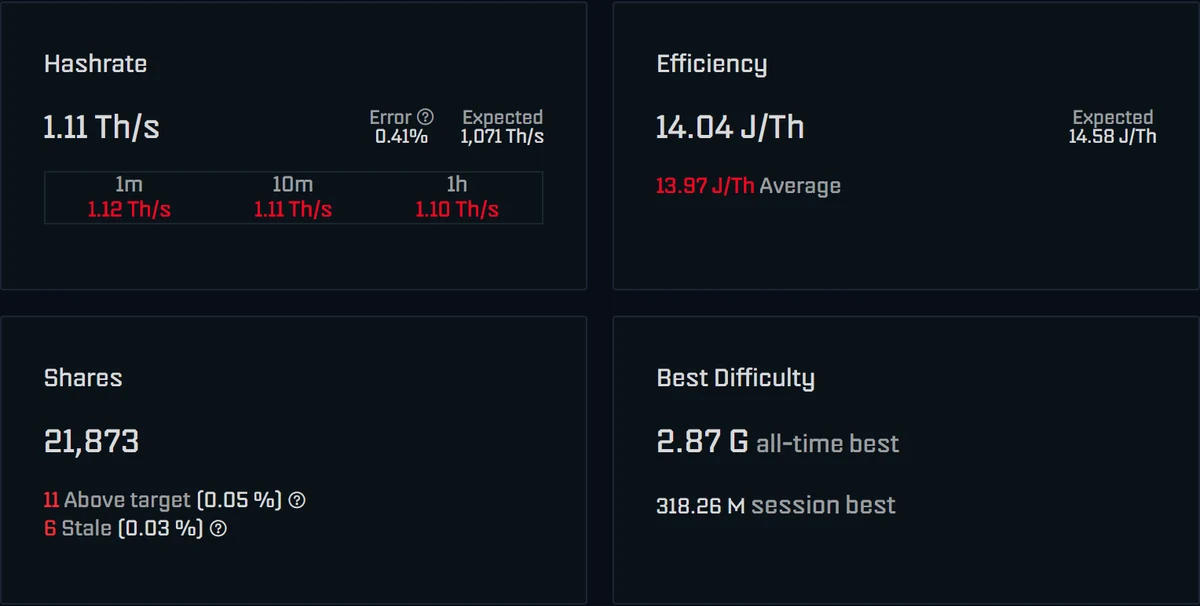
Hashrate is the current computing power. Since AxeOS 2.11 the firmware reads it every second from counters in the chip; it is no longer estimated from shares and therefore fluctuates much less than before. Below are the averages over one minute, ten minutes and one hour. The hourly average is the meaningful one.
Expected is the hashrate to expect at your clock: clock times number of cores times number of chips. For the Gamma at 525 MHz that is 1,071 GH/s. If the hourly average stays more than about 5 % below it, something is off; usually the voltage is not enough for the clock, or the miner is too hot.
Error is the share of faulty hashes reported by the chip itself. AxeOS explains: a small number of errors every few seconds is normal; frequency changes, aggressive overclocking, undervoltage or a bad power supply raise the value. Permanently below 0.1 % is very good. Everything about the error value is in Bitaxe hashrate error explained.
Efficiency is the energy per terahash in J/TH, power divided by hashrate; lower is better. Next to it is the value at expected hashrate, below it the value with the one-minute average. On the Gamma the power is an estimate (see Power), so the efficiency is an approximation too.
Shares counts the proofs of work accepted by the pool. The number must keep rising. Rejected shares are listed below with a reason, for example “Above target” (difficulty too low), “Stale” (the block had already been found when the share arrived) or “Duplicate”. A question mark next to each reason explains it. Below 1 % rejected is normal.
Best Difficulty is the best share since the last start (“session best”) and over the whole running time (“all-time best”). If a share reaches the network difficulty, it is a block. Which values are typical and why a high value does not bring you closer to a block is explained in finding a block with a Bitaxe.
The chart
The chart shows two quantities at once, one per axis. The two drop-downs choose what appears on the left and right: hashrate, temperature, voltage, power, current, fan speed, percentages such as the error, Wi-Fi signal, free memory or pool response time. You can hide individual lines through the legend. The chart only shows hours of history if data logging (“Data Logging”) is switched on under Settings; otherwise it only fills while the page is open.
Power, Heat and Fan
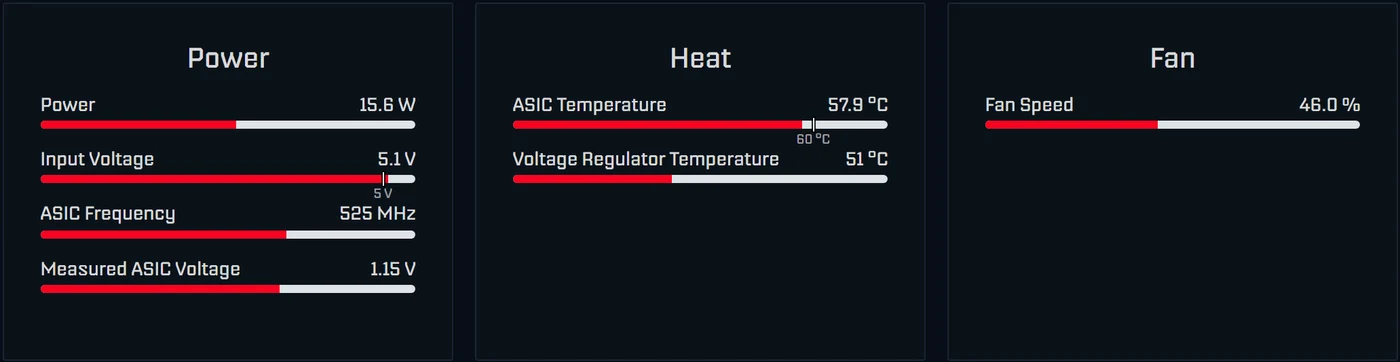
| Reading | Meaning | Normal on the Gamma | Act when |
|---|---|---|---|
| Power | power according to the voltage regulator plus an allowance (Gamma 5 W, GT 10 W, Supra Hex 25 W) | about 15 to 19 W | clearly more at factory clock |
| Input Voltage | input voltage from the power supply, mark at the nominal value | 5.0 to 5.2 V (GT, Supra Hex: about 12 V) | “Danger: Low Voltage” below 95 % of nominal |
| ASIC Frequency | actual clock | 525 MHz out of the box | clearly below the set value |
| Measured ASIC Voltage | measured core voltage at the chip | just below the set value | strongly deviating |
| ASIC Temperature | chip temperature, mark at the fan target | around 60 °C | warning from 70 °C, protection above 75 °C |
| Voltage Regulator Temperature | temperature of the voltage regulator | 45 to 75 °C | protection above 105 °C |
| Fan Speed | fan power in percent, speed in the tooltip | 30 to 70 % | permanently 100 % with automatic control on |
Important about Power: on the Gamma, GT and Supra Hex AxeOS does not measure at the wall but calculates the output power of the voltage regulator plus a fixed allowance. A meter at the wall shows a little more. What happens at high temperatures is in the overclocking guide; cooling and noise are covered in making a Bitaxe quieter.
Pool, Block Header, Hashrate Registers and Misc
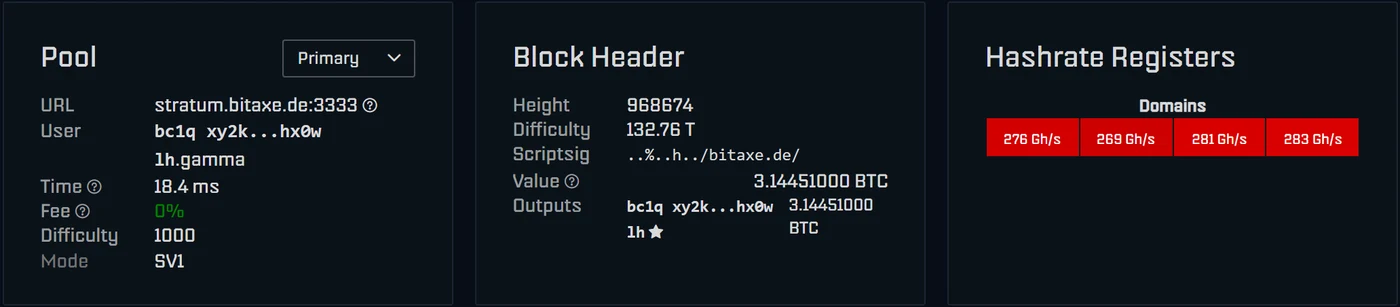
- Pool: address and port of the active pool, your user, the pool's response time (“Time”), the fee the pool would keep if you found a block (“Fee”), the current share difficulty and the protocol (“Mode”, SV1 or SV2). The selector at the top right switches between Primary and Fallback; the miner restarts immediately. For known pools a link icon leads to the statistics page of your address.
- Block Header: the job the miner is working on: block height, network difficulty, the pool's tag in the block (“Scriptsig”,
/bitaxe.de/on our pool), the block value and the recipients of the reward. A star marks your own address. At a glance you see that a found block would really go to you. - Hashrate Registers: the hashrate per domain of the chip, per chip on devices with several chips.
- Misc: running time since the last start (“Uptime”), total running time (“Total Uptime”) and the number of all hashes computed so far as a power of two. The totals exist since AxeOS 2.15; they are saved once an hour.
Messages above the cards
Coloured notices appear at the top of the dashboard when something special is going on:
| Message | Meaning | What to do |
|---|---|---|
| Unable to reach the device for … | The browser can no longer reach the miner. | check Wi-Fi, power and IP |
| Mining is paused | Mining was stopped with the pause button. | resume or restart |
| Device has overheated - See settings | The overheat protection triggered and lowered clock and voltage. | fix the cause, check values and automatic fan control in Settings |
| … Check your Power Supply. | The voltage regulator reports a fault, for example too little input voltage. | check power supply and plug, restart |
| Device frequency is set low - See settings | The clock is below the device's lowest preset. | check Frequency in Settings |
| Using fallback pool - Share stats reset … | The first pool cannot be reached, the miner is hashing on the fallback. | check pool details, restart |
| Your share of the mining reward is only … | A found block would only partly go to your address. | on a solo pool, check address and pool |
| Today is your lucky day! … | Your miner has found a block. | confirm on mempool.space and at the pool |
The icons at the top right
- Grid (computer only): “Edit Layout” to arrange and hide cards.
- Eye: hides sensitive data such as address, Wi-Fi name and MAC address. Handy before sharing a screenshot.
- Wi-Fi icon: shows the signal strength as a tooltip and leads to the Network page.
- Pause: stops mining, cuts power to the chip and sets the fan to 30 %. A restart resumes mining automatically.
- Circular arrow: restarts the miner after a confirmation.
The pages in the menu
Scoreboard
The 20 best shares your miner has ever found, with rank, difficulty, time and technical details such as nonce and version. The list survives restarts. You do not need it for operation, but it shows nicely how rare very high values are.
Swarm
The overview for several miners. “Auto Scan” searches your network for further devices, or you add them via “Add Device by Address” with an IP or .local name. At the top are totals for devices, hashrate, power and best share, below each device with hashrate, temperatures and pool. Per device you can open the settings, restart it, make it identify itself (“Identify”) or remove it. The browser stores the list, not the miner, so you will not see it on another device.
Logs
“Realtime Logs” shows what the firmware is doing right now, with a filter and a download button. If you contact our support, this file is often the quickest help.
System
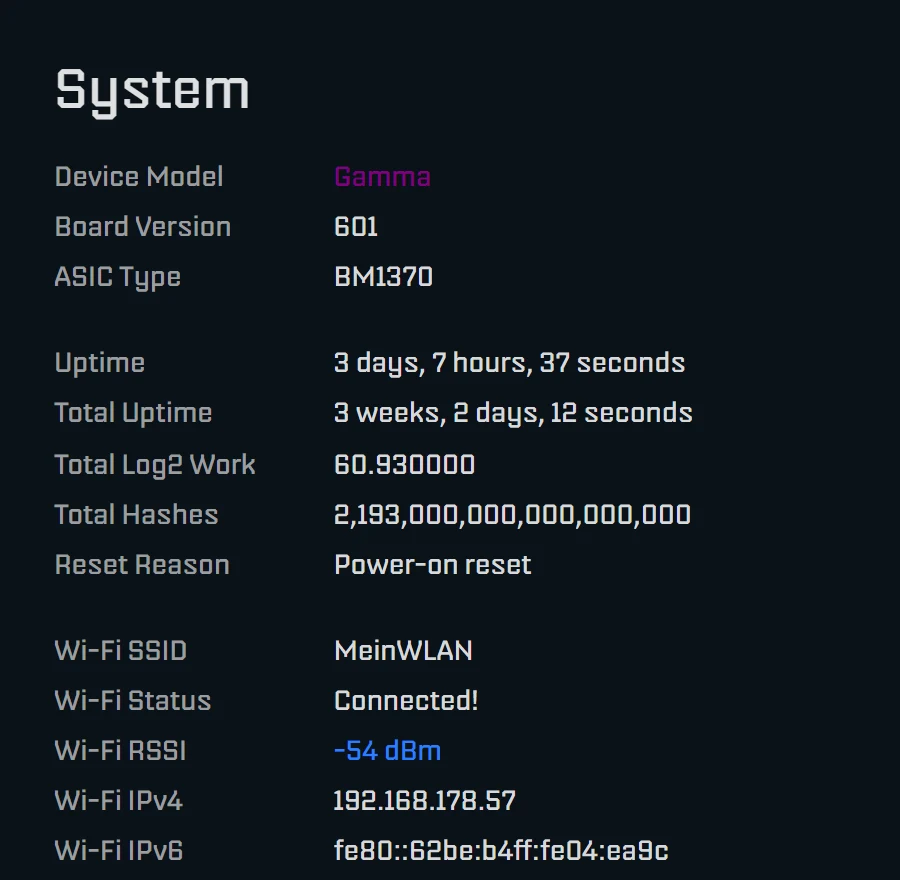
Model, board revision, chip, running times, reason for the last restart (“Reset Reason”), Wi-Fi with signal strength and addresses, memory and firmware version. AxeOS colours the signal strength: better than −50 dBm is excellent, down to −60 good, down to −70 fair, below that weak. The “Identify device” button makes the miner show an identification image on its display for 30 seconds, handy with several miners on a shelf.
Pool

Since AxeOS 2.15 the miner stores up to eight pools. Under “Active Pool Selection” at the top you choose which one is the “Primary Pool” and which the “Fallback Pool”. Each entry has Stratum Host, Stratum Port, Stratum Protocol (V1 or V2), User and Password. For Stratum V2 the channel type and the “SV2 Authority Pubkey” are added; “Show Advanced Options” holds, among others, the suggested difficulty and TLS. A restart is needed after saving. If the User field still holds the factory address, the page shows a yellow warning.
The fallback steps in when the first pool could not be reached three times; every minute the miner checks whether the first one is back and then returns. If all pools are down, it pauses mining and tries again every 30 seconds. Which pools suit a Bitaxe is covered in choosing a mining pool, how Stratum V2 works in setting up Stratum V2.
Network
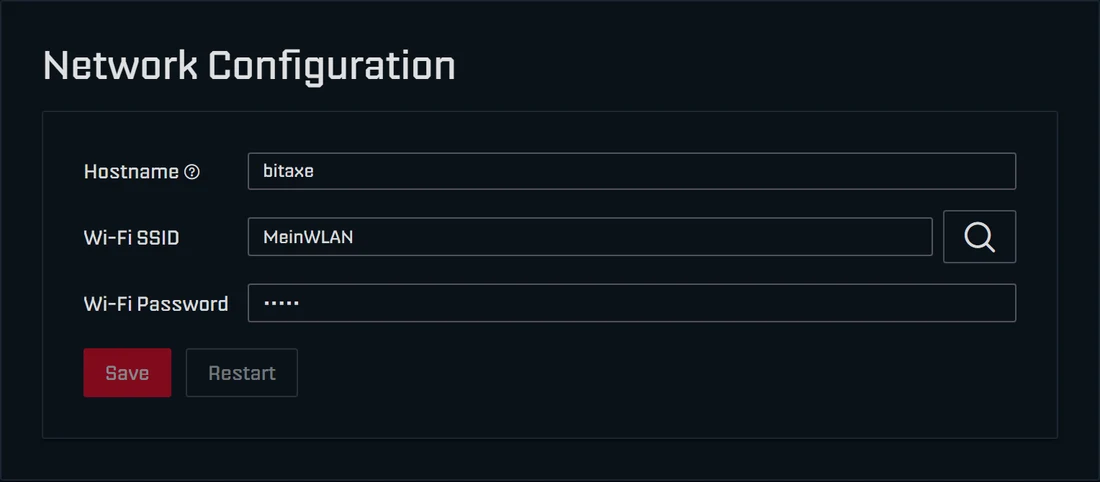
Hostname, Wi-Fi name and password. AxeOS applies a new hostname immediately without a restart and redirects the browser to the new .local address. The magnifier searches for Wi-Fi networks in range; it does not list hidden networks or those with a very weak signal (below −80 dBm). Changes to the Wi-Fi name or password need a restart.
Theme
Colour scheme (Dark, Light or White) and accent colour from 50 presets or freely chosen. The miner stores the setting, so it applies to every browser.
Settings
At the top are Frequency, Core Voltage and fan control. Factory values are marked “(Default)”, on the Gamma 525 MHz and 1150 mV. “Automatic Fan Control” drives the fan to the “Target Temperature” (35 to 66 °C, 60 °C out of the box) and never below “Minimum Fan Speed” (25 % out of the box). Without automatic control you set “Fan Speed” to a fixed value; below 33 % AxeOS warns about overheating. Free values for clock and voltage are only available in overclock mode, as described in the overclocking guide.
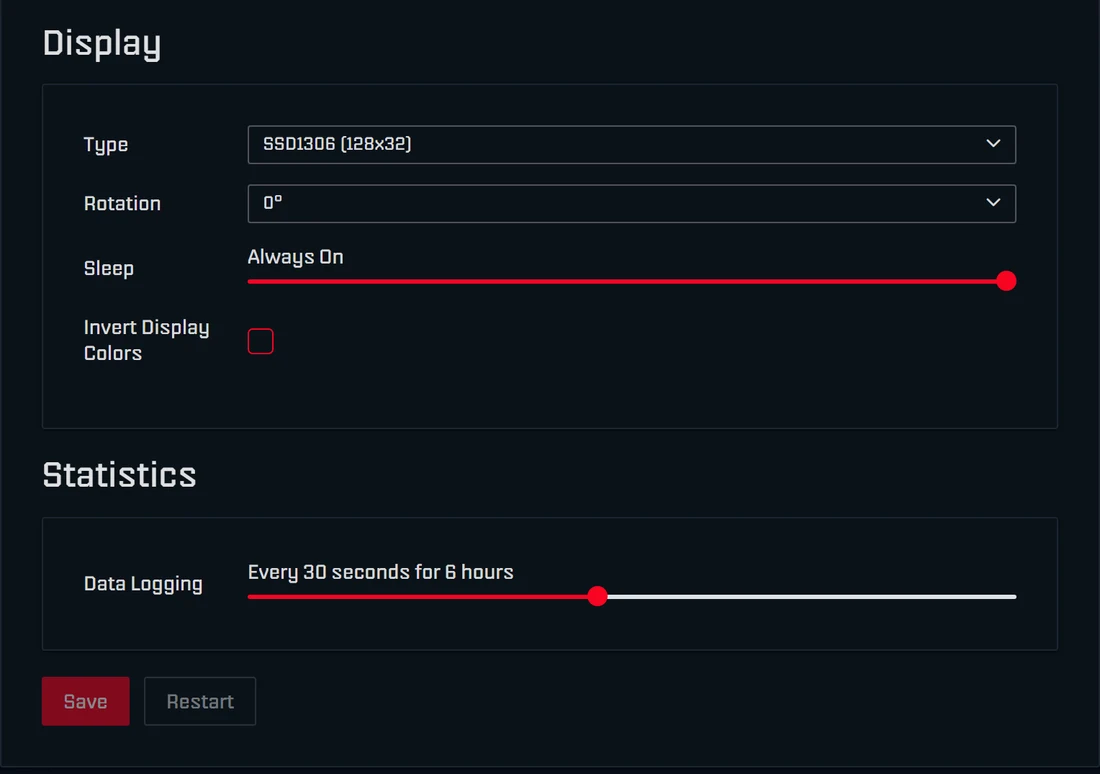
Below follow “Display” with type, rotation, sleep time and inversion, and “Statistics” with data logging for the chart. AxeOS applies clock, voltage, fan and data logging immediately; only changes to the display type, rotation and inversion need a restart.
Update
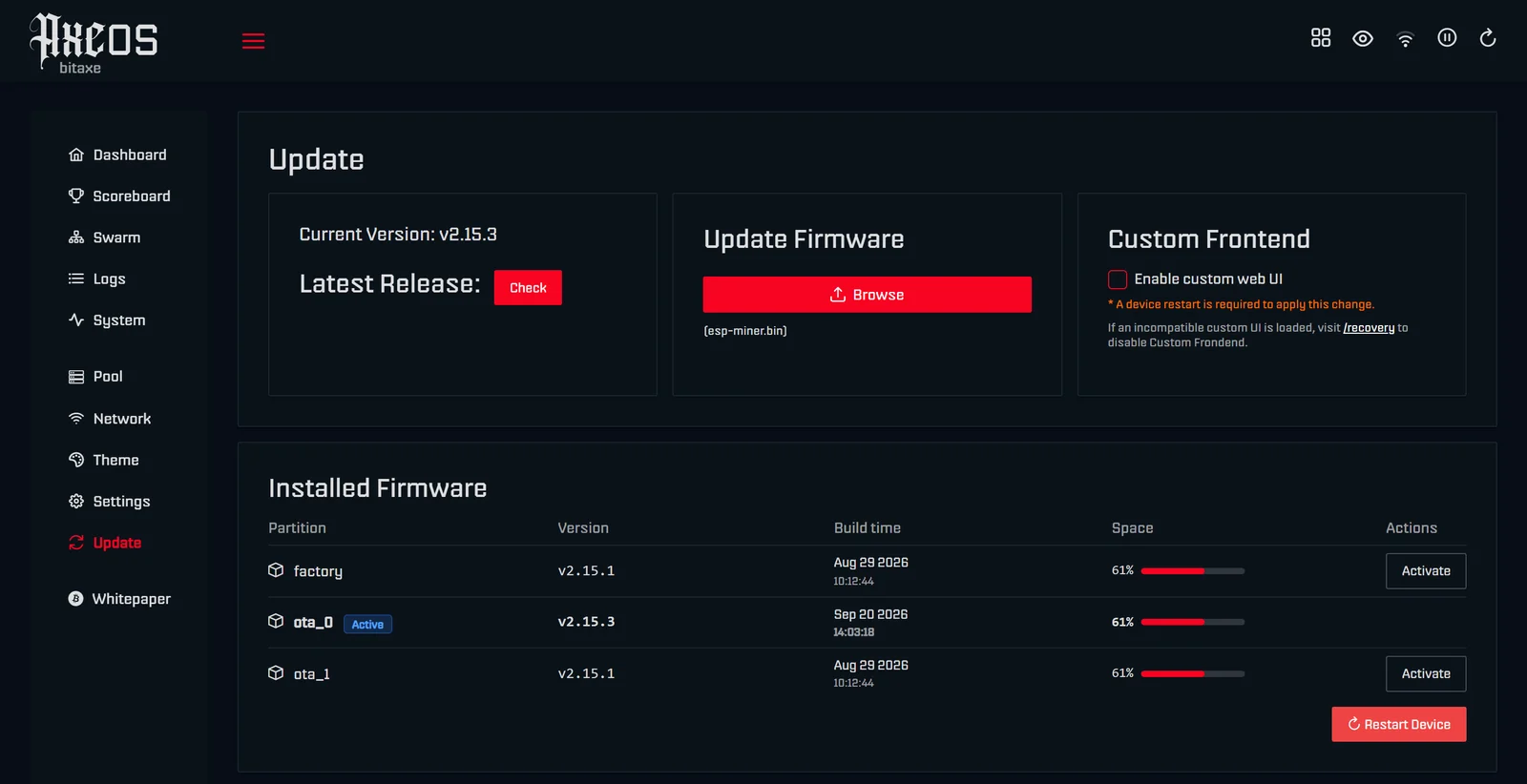
Shows the installed version and, on request, checks GitHub for a newer one; AxeOS asks first because this needs a connection to github.com. Updates use a single file, esp-miner.bin. Under “Installed Firmware” you see all installed versions and can switch back to an earlier one with “Activate”. Every route, including flasher.bitaxe.de, is in the firmware update guide.
Whitepaper
Opens Satoshi Nakamoto's Bitcoin whitepaper, which is stored as a PDF on every Bitaxe.
When the dashboard does not load
- Wrong address: the IP can change after a router restart. Check the display or your router's device list. Some Android phones do not know
.localnames; use the IP there. - Different network: your phone or laptop must be on the same network as the miner. Guest networks with client isolation and VPN connections prevent access.
- Setup Wi-Fi active: if the miner cannot find its Wi-Fi, it only shows the setup page. Join
Bitaxe_XXXXand enter the Wi-Fi again. - After an update: reload the page once so the browser fetches the new interface.
- Miner restarted or without power: the dashboard reports “Unable to reach the device”. Check power and display.
If none of that helps, the miner troubleshooter guides you to the cause step by step.
The AxeOS API for home automation and scripts
Everything the dashboard shows is also available from AxeOS as JSON through an open interface on your home network. Users connect their miner to home automation such as Home Assistant, switch it on by script when there is solar surplus or collect the values in their own charts. The most important endpoints:
| Call | Purpose |
|---|---|
GET /api/system/info | all current values and settings |
GET /api/system/asic | chip, model and the allowed values for clock and voltage |
PATCH /api/system | change settings, for example {"frequency": 550} |
POST /api/system/pause and /resume | pause and resume mining |
POST /api/system/restart | restart |
GET /api/system/statistics | logged history (with Data Logging switched on) |
A first test in the terminal: curl http://bitaxe.local/api/system/info. The API, too, only answers requests from private home networks. So do not expose it to the internet.
AxeOS or NerdOS?
Nerdaxe, NerdQaxe++, NerdQX and NerdOctaxe run their own development of the same firmware family, NerdOS. The interface looks different, can be switched to German and arranges the settings in cards such as “WiFi Settings” and “Stratum Settings”. The terms are the same, though. The guides for the NerdQaxe++ and the Nerdaxe Gamma explain it step by step. To set up a Bitaxe from scratch, see the Bitaxe setup guide.
Frequently asked questions about AxeOS
How do I open AxeOS?
Is there a password or login for AxeOS?
Is there an app for AxeOS?
What does Expected mean in the dashboard?
What does Error mean in AxeOS?
Why does the power reading differ from my meter?
Which temperatures are normal in AxeOS?
Do I have to restart after every change?
Why does the AxeOS dashboard not load?
What is the Swarm in AxeOS?
Can I connect AxeOS to Home Assistant?
Does AxeOS also run on the Nerdaxe and NerdQaxe?
Matching products


Read more
Nerdaxe Gaia: what the BM1373 miner can do, which firmware to run and who it is for
A single BM1373 in the familiar Nerdaxe format: factory settings from the source code, hashrate and power draw with every documented figure, the 12-volt power supply, OSM-OS from the flasher, setup, overclocking up to the current limit, block odds and electricity cost, plus a comparison with the Nerdaxe Gamma, Bitaxe GT and NerdQaxe++.
Guides & knowledgeSetting up Stratum V2 on a Bitaxe: encrypted solo mining in five fields
Since AxeOS 2.14 every Bitaxe speaks Stratum V2, and since September 2026 so does the Bitaxe Pool. This guide walks through the AxeOS fields one by one, shows how to set up the fallback and verify the connection, and lists what goes wrong when no shares arrive. For Bitaxe, NerdQaxe and large ASICs.
Guides & knowledgeNerdQaxe++ review: 4.8 TH/s from four BM1370, and who should upgrade from a Bitaxe
Four BM1370 on one board, 4.9 TH/s expected out of the box, about 76 W, two fans and NerdOS in the browser: we put the NerdQaxe++ in context. Factory values from the firmware, board revisions, noise, running costs, block odds, setup in NerdOS and the comparison with the Bitaxe Gamma, GT and 702, Copper Pro, Hydro, NerdQX and NerdOctaxe.