
Bitaxe on Wi-Fi but not mining: fixing no shares and 0 hashrate
3 March 2026 · 18 min read · Updated on 26 September 2026

Your Bitaxe is on Wi-Fi, AxeOS opens at http://bitaxe.local or via its IP address, but the hashrate sits at 0 or the Shares counter does not move. So the device is alive; it just is not getting any work done between miner and pool. In the vast majority of cases this is a typo on the Pool page, less often the router or a DNS filter blocks the connection, and only rarely is the hardware to blame. This article works through the causes in that order, with the exact messages from AxeOS 2.15.3 and NerdOS 1.1.0.1, and shows you which log line gives the fault away.
stratum.bitaxe.de (no stratum+tcp://, no port), Stratum Port 3333, Stratum Protocol “Stratum V1”, your own Bitcoin address under User, Password x. Then Save and Restart. If that does not help, the Logs page tells you why. The miner troubleshooter gets you there faster, and the pool configurator gives you the right values for every pool. First, pin down the symptom
Before you change anything, take a close look at the dashboard. Since AxeOS 2.14 a Bitaxe without a reachable pool behaves differently than it used to, and the notices at the top of the dashboard often already tell you where the problem is. This table maps the typical pictures to their causes:
| What you see | What is behind it | Continue at |
|---|---|---|
| Hashrate exactly 0, fan at 30 %, no notice at the top | AxeOS cannot reach any pool and has switched the chip off | Causes 1, 3, 4 and 6 |
| “Using fallback pool - Share stats reset. Check Pool Settings and / or reboot Device.” | The primary pool failed three times, the miner is working on the fallback | Causes 1 and 2 |
| “Mining is paused” | Someone pressed “Pause Mining” at the top right | Cause 9 |
| Normal hashrate, but shares do not rise or end up as “rejected” | The pool receives the work but does not accept it | Rejected shares, cause 2 |
| Everything runs, but a yellow warning on the Pool page or “You don't have a share in the mining reward” | You are mining to someone else’s address, or the pool does not pay you | Cause 2 |
| “Device has overheated - See settings” | Overheat protection has stopped mining | Cause 8 |
| “Danger: Low Voltage” or “Power Fault Detected. Check your Power Supply.” | The power supply delivers too little voltage | Cause 7 |
| The display shows “ASIC STATUS:” with an error message | The chip was not detected at startup | Cause 9 |
What AxeOS does when no pool answers
One thing to understand up front: AxeOS only starts mining once Wi-Fi is up, and the chip only works on jobs that come from the pool. If no connection to the pool can be made, AxeOS has run this sequence since version 2.14:
- AxeOS tries to reach the primary pool. After three failed attempts it gives up on that pool.
- If a fallback is configured, AxeOS switches to it. The dashboard shows “Using fallback pool - Share stats reset. Check Pool Settings and / or reboot Device.” and the share counters start again from 0. About once a minute AxeOS checks whether the primary pool answers again and then switches back on its own.
- If the fallback fails as well, or there is none, AxeOS switches the chip off to save power. The hashrate drops to exactly 0, the fan runs at 30 %, and every 30 seconds AxeOS tries again to reach one of the pools. As soon as one answers, mining resumes without a restart.
There is no dedicated notice at the top of the dashboard for this pause. You recognise it by the combination of 0 hashrate, the fan at 30 % and a specific line in the log (next section). It is not a fault but intentional: without a pool, every bit of hashing would be wasted power. On a Bitaxe, 0 hashrate therefore first means “no pool” and only at the very end “broken chip”. The Nerd devices running NerdOS behave differently; more on that in the NerdOS section.
Reading the logs: what each line means
The Logs page in the menu shows live what the firmware is doing, under “Realtime Logs”. Each message is preceded by a letter for its type (I for info, W for warning, E for error), a timestamp and the part of the program, such as stratum_v1_task. Errors appear in red, warnings in yellow. Type stratum or pool into the “Case-sensitive filter” field and only the lines about the pool connection remain; upper and lower case matter. “Download Logs” saves everything as a file, for example for support. Since AxeOS 2.14 the logs survive a restart as long as power is not interrupted.
| Log line | Meaning | What to do |
|---|---|---|
Opening connection to pool: stratum.bitaxe.de:3333 | AxeOS is connecting to the pool. Host and port appear exactly as saved. | Check for typos. |
DNS resolution failed for stratum.bitaxe.de:3333 (error: …), then Address resolution failed for stratum.bitaxe.de | The pool’s name cannot be translated into an IP address. | Check the host for typos, then DNS (cause 4). |
Transport unable to connect to stratum.bitaxe.de:3333 (errno …). Attempt: 1 | The name resolves, but the connection to the port fails. | Check the port, then router and firewall (cause 3). |
Failed to receive JSON-RPC line, reconnecting... | The connection was up, but no valid answer came back, or it dropped. | Check protocol and port, then Wi-Fi (cause 5). |
Max V1 retry attempts reached (3), notifying coordinator | Third failed attempt, AxeOS gives up on this pool. | The lines before it show the reason. |
Switching to fallback pool (SV1) | Switch to the fallback. | Fix the primary pool, check the address in the fallback. |
All configured pools unreachable, pausing mining to conserve power. | No pool reachable, the chip is off. A new attempt follows every 30 seconds. | Causes 1, 3, 4 and 6. |
Pool recovery: primary pool reachable, resuming mining (SV1) | The primary pool answers again, mining continues. | Nothing. |
setup message rejected: … | The pool rejected a step of the connection setup, usually the login; its reason follows the colon. | Check the User field (cause 2). |
message result accepted | A share was accepted. This is what it looks like when everything works. | Nothing. |
Noise handshake failed, reconnecting... | Stratum V2: the encrypted connection setup failed. | Check port 3336 and the authority key. |
OVERHEAT! VR: …C ASIC: …C | Overheat protection has kicked in. | Cause 8. |
ASIC initialization failed - chip chain detection failed | The chip was not found at startup. | Cause 9. |
With Stratum V2, AxeOS also shows the reason on the Pool card of the dashboard: hover over the icon next to the URL and you see, for example, “SV2: Pool unreachable”, “SV2: Auth required - no key” or “SV2: Auth failed - check key”.
Cause 1: wrong pool details (host, port, protocol)
The most common reason is mundane: one character too many or too few. The pool details live on the Pool page. Since AxeOS 2.15 it holds up to eight entries; under “Active Pool Selection” you choose which one serves as “Primary Pool” and which as “Fallback Pool”. Expand the entry marked “Primary” and check every field:

- Stratum Host: just the name, for our pool
stratum.bitaxe.de. Nostratum+tcp://in front, no:3333behind it, no spaces. If you paste a full address such asstratum+tcp://stratum.bitaxe.de:3333, AxeOS 2.15 splits it into host and port by itself. - Stratum Port: exactly the pool’s port, for us
3333. Old guides often give 21496 for Public Pool; 3333 applies there too nowadays. - Stratum Protocol: “Stratum V1” for port 3333. “Stratum V2” only belongs with a V2 port such as our
3336; it goes together with the pool’s authority key, which is mandatory once “Require Authentication” is ticked. If protocol and port do not match, no connection is made. - User: your Bitcoin address, optionally followed by a dot and a device name, e.g.
bc1q….gamma. More on this under cause 2. - Password:
x. AxeOS only shows a saved password masked. - Connection Security (under “Show Advanced Options”): “No TLS”, unless your pool explicitly names a TLS port. If you paste an address starting with
stratum+tls://orstratum+ssl://, AxeOS switches TLS on by itself; against a normal port such as 3333 no connection is made then.
After Save, AxeOS reports “You must restart this device after saving for changes to take effect.” Without Restart the miner keeps working with the old values; that is easy to miss. The values for the common pools:
| Pool | Stratum Host | Stratum Port | Stratum Protocol |
|---|---|---|---|
| pool.bitaxe.de (our recommendation) | stratum.bitaxe.de | 3333 | Stratum V1 |
| pool.bitaxe.de with Stratum V2 | stratum.bitaxe.de | 3336 | Stratum V2, plus authority key |
| Public Pool | public-pool.io | 3333 (no longer 21496) | Stratum V1 |
| Public Pool on your Umbrel | IP address of the node or umbrel.local | 2018 | Stratum V1 |
| Solo CKPool Europe | eusolo.ckpool.org | 3333 | Stratum V1 |
For Stratum V2 you also enter the pool’s authority key; how that works is covered in setting up Stratum V2 on a Bitaxe. If your pool runs on your own node and the log says “Address resolution failed for umbrel.local”, enter the node’s IP address instead; details in Bitaxe with your own node and Public Pool on Umbrel. Which pool suits you is compared in choosing a Bitaxe mining pool.
Cause 2: the address in the User field
A solo pool pays a found block to the address in the User field. If something is wrong there, one of two things happens. Either the pool rejects the login; then it accepts no shares and the log shows “setup message rejected: …”. Or it accepts a valid but wrong address; then everything seems to work perfectly, just for someone else. The second case is the treacherous one.
- Always copy the address from your wallet, never type it, and then compare the first and last characters.
- Solo pools like ours expect a normal on-chain address in this field, such as one starting with
bc1. Account-based pools expect account name and worker instead. What goes into the field for the common pools is shown by the pool configurator. - The part after the dot is just a name for your device. AxeOS splits at the last dot and shows the address in bold and the name after it in normal type.
The factory address: yellow warning on the Pool page
On a factory install, the official firmware fills in the address bc1qnp980s5fpp8l94p5cvttmtdqy8rvrq74qly2yrfmzkdsntqzlc5qkc4rkq, in the primary pool (public-pool.io) and in the fallback (solo.ckpool.org). As long as it is in any entry, the Pool page shows a yellow banner at the top: “Warning: You are using the default factory Bitcoin address. Please change the User field to your own Bitcoin address to receive mining rewards.” If the warning stays after you have changed the primary pool, the factory address is still in the fallback. And that is exactly where your miner ends up as soon as the primary pool is entered incorrectly.
OSM-OS: pool preset, address not yours
With OSM-OS, which is preselected on flasher.bitaxe.de, an install without “keep configuration” already has stratum.bitaxe.de with port 3333 as the primary pool and solo.ckpool.org as the fallback. That saves typing. But the User field in both entries holds a preset address ending in .osm, not yours. The yellow warning does not appear for it, because AxeOS only knows the factory address of the official firmware. So the miner delivers shares, the dashboard looks flawless, and a found block would go to that address. Enter your own address in both entries.
“You don't have a share in the mining reward”
AxeOS decodes the coinbase in every job from the pool, that is the transaction that distributes the reward if a block is found, and compares its recipients with the address in the User field. On the Block Header card the recipients are listed under “Outputs”, and your address carries a star. If it is missing entirely, the top of the dashboard shows “You don't have a share in the mining reward”; if your share is below 95 %, it says “Your share of the mining reward is only …%”.
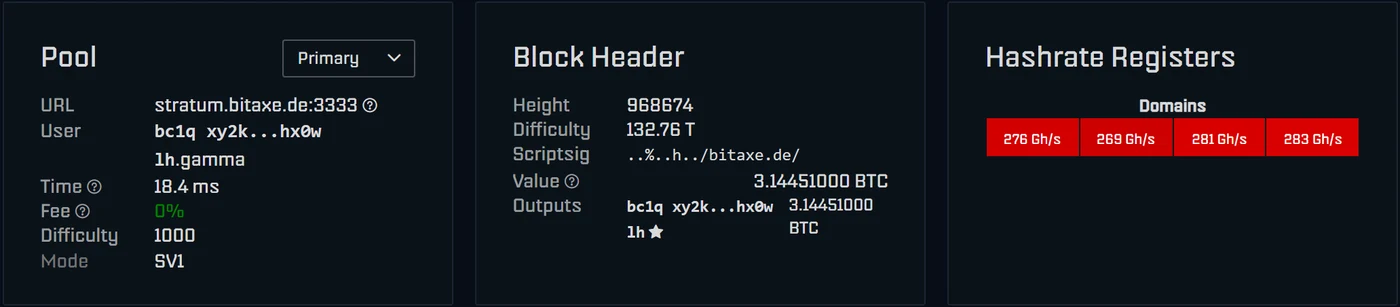
How you read the message depends on the pool. On a solo pool your address must receive the whole block; if it is missing, this pool does not pay you and you should switch. Shared pools pay the block to their own address and distribute it later; there the message is normal. With SOLO Groups on pool.bitaxe.de the coinbase splits the block among the members according to the work they did, so a share below 100 % is intended.
Note that this check does not catch a typo: the pool pays the address in the User field, and that is exactly what AxeOS compares against. Nobody does the comparison with your wallet for you. The check needs the “Decode Coinbase Tx” option under “Show Advanced Options”, which is switched on by default.
Cause 3: router, firewall and guest network
The official ESP-Miner project explicitly warns in its documentation that some Wi-Fi routers block mining, naming ASUS routers and some TP-Link models. The project’s fix: switch off “AiProtection” and the IoT features in the router settings. The tricky part is that AxeOS still loads in the browser, because the block affects the connection to the outside, not access from your home network. Typical suspects:
- AiProtection on ASUS and IoT protection features from other brands,
- parental controls, device blocking and time profiles for “unknown devices”,
- separate rules for guest or IoT networks that only let certain ports out or block access to other devices on your home network (important if your pool runs on your own node),
- firewall rules that block outgoing connections on port 3333 or 3336.
Switch off only one feature at a time as a test, restart the miner via “Restart” and watch the logs. If “message result accepted” shows up afterwards, you have found the culprit. Then add an exception for the miner rather than switching the protection off for good.
The one-minute test from a computer
You can check whether the way out is open from a computer on the same network, ideally on the same Wi-Fi as the miner:
- Windows (PowerShell):
Test-NetConnection stratum.bitaxe.de -Port 3333. On success the output saysTcpTestSucceeded : True. - macOS and Linux:
nc -vz stratum.bitaxe.de 3333. On success nc reports a successful connection.
If the test works on the computer but the miner reports “Transport unable to connect”, different rules apply to the miner than to the computer. That is typical of guest networks, IoT networks and device blocking. If even the computer test fails, the network blocks the port for every device, as happens in some office or hotel networks.
Cause 4: DNS filters and name resolution
Before the miner connects, it asks the DNS server for the pool’s IP address. If that fails, the log shows “DNS resolution failed for stratum.bitaxe.de:3333” and “Address resolution failed for stratum.bitaxe.de”. If the host is spelled correctly, check the DNS filters on your home network:
- Pi-hole or AdGuard Home: look in the query log to see whether the miner’s request for
stratum.bitaxe.dewas blocked, and allow the domain. - DNS filtering or parental controls in the router: switch them off for the miner as a test.
- Separate IoT network or VLAN: check whether a DNS server is reachable there at all.
Run the counter-test on your computer with nslookup stratum.bitaxe.de. If an address comes back there and the miner still fails, it is probably asking a different DNS server than your computer. Add an exception for the domain in your filter rather than putting the pool’s IP address into the Stratum Host field: if the pool ever changes its address, your miner stops.
Cause 5: Wi-Fi reception, 2.4 GHz and WPA3
The ESP32-S3 in the Bitaxe only uses the 2.4 GHz band; it cannot see a pure 5 GHz network. Mixed networks are trickier: band steering and mesh systems move devices between bands and access points by themselves, and a miner at the edge of the range drops its connection now and then. The browser still shows AxeOS whenever the connection happens to be up, but shares reach the pool late or not at all.
The System page shows the signal strength in dBm under “Wi-Fi RSSI”. AxeOS colours the value and names it when you hover over it: above −50 dBm “Excellent”, above −60 dBm “Good”, above −70 dBm “Fair”, below that “Weak”. In the dashboard chart you can show “Wi-Fi RSSI (dBm)” and “Response Time (ms)” to see whether dips line up with the dropouts. The Wi-Fi scan on the Network page hides networks below −80 dBm entirely.
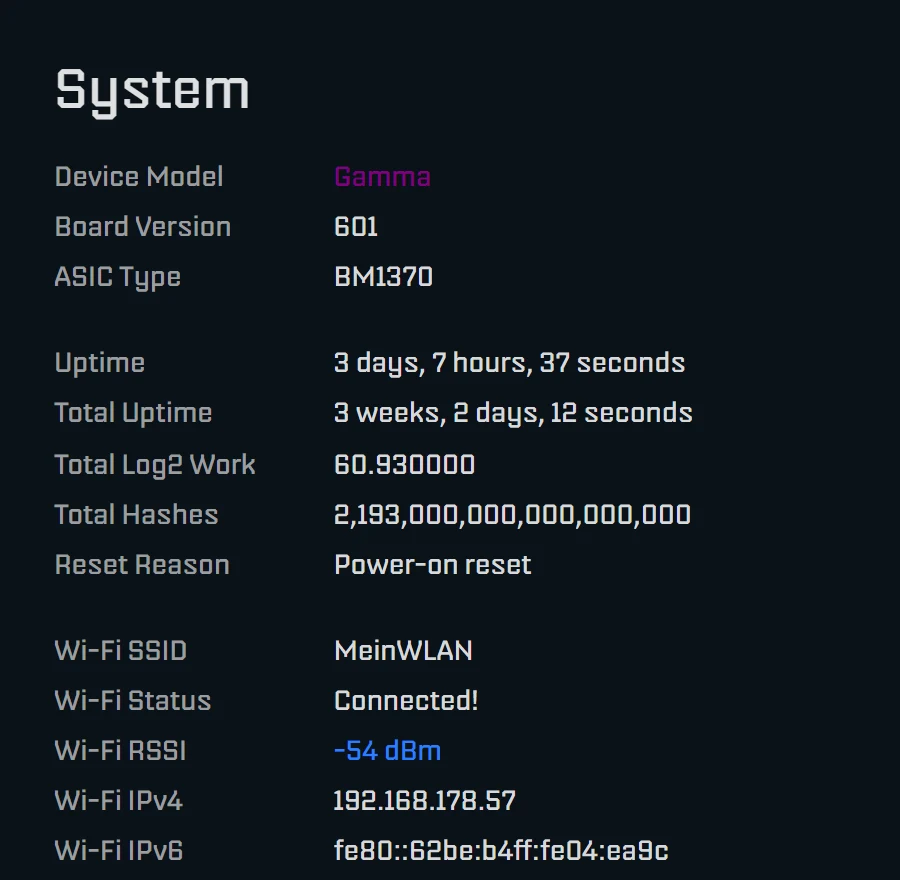
When the miner loses its Wi-Fi, the log shows lines such as “Could not connect to …” and “Wi-Fi status: …” with a reason, for example “Beacon timeout”; the same text then appears under “Wi-Fi Status” on the System page. What helps:
- For the test, set up a separate 2.4 GHz SSID or temporarily switch off band steering.
- Move the miner closer to the router or an access point; metal shelves and closed cabinets weaken the signal.
- If your router runs in mixed WPA2/WPA3 mode and the connection keeps dropping, update to at least AxeOS 2.15.1, which fixes exactly this case.
- The easiest way to update is flasher.bitaxe.de: OSM-OS is preselected there, and the “keep configuration” tick box keeps Wi-Fi and pool. If the Wi-Fi does not hold, use a USB cable; if it does, the file
esp-miner.binon the Update page in AxeOS is enough. Step by step in updating AxeOS on a Bitaxe.
Single dropouts cost next to nothing; the miner reconnects by itself. It gets critical when they come every few minutes: rejected shares pile up, and in the worst case the miner ends up on the fallback after three failed attempts. To move the miner to a different Wi-Fi, enter it on the Network page and restart.
Cause 6: the pool is not reachable
Pools go down or get maintained now and then too. That is what the fallback is for: on the Pool page, use “Add Pool” to enter a second pool from a different operator, with your own address, and select it under “Fallback Pool”. Our suggestion: stratum.bitaxe.de:3333 as primary and eusolo.ckpool.org:3333 as fallback. Solo CKPool keeps 2 % of a found block, which is fine as a reserve for a few hours. AxeOS switches there after three failed attempts and returns on its own as soon as the primary pool answers again; the log then says “Primary pool is back! Switching from fallback.”
Whether the pool itself is running is shown on its status page, for our pool at pool.bitaxe.de. If you do not want to keep checking the dashboard: our pool’s Telegram bot @bitaxepool_bot notifies you when a worker has delivered no shares for 15, 30 or 60 minutes. All you send it is your Bitcoin address. How our pool works is explained in Bitaxe Pool: solo mining from Frankfurt.
Cause 7: the power supply
A weak power supply shows up more often as restarts or dropouts than as “not mining”. Three indicators in AxeOS make it clear:
- “Danger: Low Voltage” in red below “Input Voltage” on the Power card: the input voltage is below 94.9 % of nominal, i.e. below about 4.75 V on 5 V devices such as the Gamma or below about 11.39 V on 12 V devices.
- “Power Fault Detected. Check your Power Supply.” at the top of the dashboard, with the cards showing “Not available - Power fault”: the voltage regulator has shut down, on the Gamma below 4.5 V input. The chip stops hashing.
- “Brownout reset (software or hardware)” under “Reset Reason” on the System page: the voltage dropped so far that the ESP32 restarted.
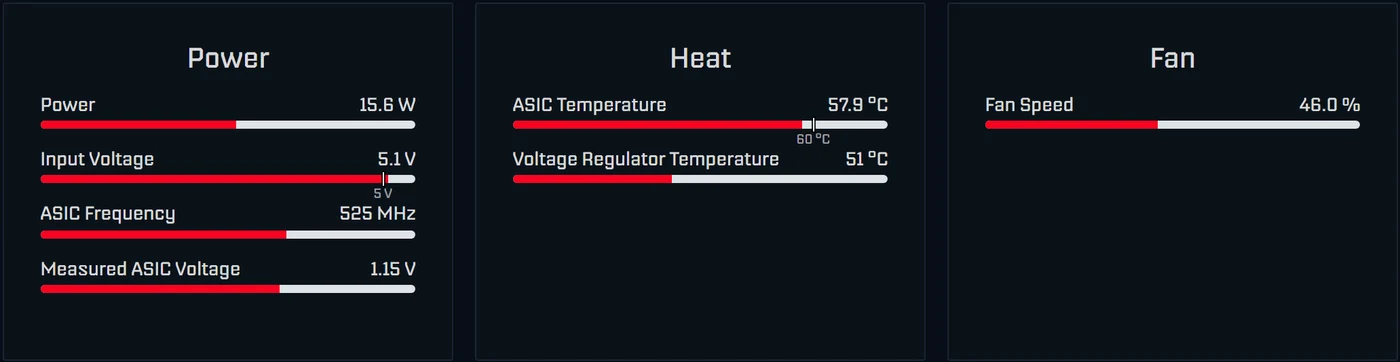
The fix: use the power supply that came with the device, short cables with an adequate cross-section, no USB hub, and plug the connector all the way in. Which device needs what is covered in power supply for the Bitaxe.
Cause 8: overheating
From 70 °C at the chip the dashboard warns with “Danger: High Temperature”. Above 75 °C at the chip or above 105 °C at the voltage regulator, AxeOS overheat protection kicks in:
- Mining stops, the hashrate drops to 0, the fan is locked at 100 %.
- The dashboard shows “Device has overheated - See settings”, the display “DEVICE OVERHEAT!”, the log “OVERHEAT! VR: …C ASIC: …C” and “Entering safe mode due to overheat condition. System operation halted.”
- After cooling down for at least 30 seconds, AxeOS restarts mining, but with 100 MHz less clock and 100 mV less voltage. A Gamma on factory settings then runs at 425 MHz and 1050 mV instead of 525 MHz and 1150 mV; Settings shows the clock as “425 (Custom)”.
- Automatic fan control stays off. Switch “Automatic Fan Control” back on in Settings yourself and reset Frequency and Core Voltage to the values marked “(Default)”.
Common causes are too little air around the device, a blocked fan or too high a clock. How to get temperature and noise under control is shown in making a Bitaxe quieter; the ICE Tower Low Profile Kit, for example, adds cooling headroom. If you have overclocked, the limits are in overclocking a Bitaxe.
Cause 9: mining paused or chip not detected
Mining paused: since AxeOS 2.14 there is a “Pause Mining” button at the top right. It switches the chip off; the dashboard shows “Mining is paused”, the display two vertical bars, and the fan runs at 30 %. “Resume Mining” in the same place or a restart gets mining going again, because the pause does not survive a restart.
Chip not detected: if AxeOS cannot find the chip at startup, mining never begins, although AxeOS and Wi-Fi still work. The display then shows “ASIC STATUS:” with a message such as “ASIC chain detection failed”, and the log says “ASIC initialization failed - chip chain detection failed”. Disconnect the miner from power completely once and plug it back in. If the message stays, download the logs and write to our support.
Rejected shares: what the reasons mean
If shares come in but some are rejected, the Shares card lists each reason separately with count and percentage, for example “11 Above target (0.05 %)”. The question mark next to it explains the reason. Permanently below 1 % rejected is normal.
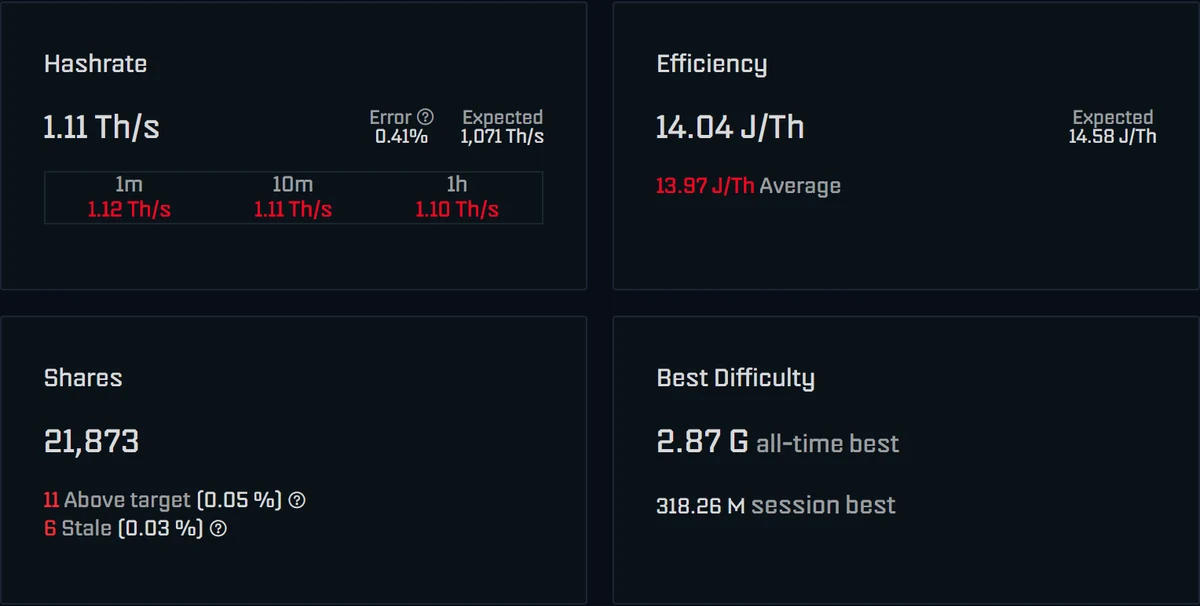
| Reason in AxeOS | Meaning | What to do |
|---|---|---|
| Stale, Job not found, stale-share | While the share was on its way, a new block was found on the network. | Normal now and then. If they pile up, check Wi-Fi and response time (“Time” on the Pool card). |
| Above target, Difficulty too low, difficulty-too-low | The share does not meet the required difficulty, for example right after the pool raised the difficulty. | Normal now and then. If the share stays above 1 %, download the logs and ask support. |
| Duplicate, Duplicate share | The same share was submitted twice. | Harmless now and then. |
| Unauthorized worker, Authorization validation error, Invalid Bitcoin address | The pool did not accept the login. | Check the User field (cause 2). |
Rejected shares have nothing to do with the “Error” value next to the hashrate: that comes straight from the chip and counts faulty hashes. What it means is explained in the Bitaxe hashrate error.
Cross-check: does your work arrive at the pool?
The most reliable check is the pool’s view. On pool.bitaxe.de you enter your Bitcoin address into the search and see your miner’s hashrate, workers, shares and best difficulty. If your address does not show up there although AxeOS counts shares, the miner is working on a different pool (usually the fallback) or with a different address.
How quickly the first share arrives depends on the difficulty the pool sets. On our pool every connection starts at 1,000; mathematically a Gamma then delivers a share about every four seconds, after which the pool adjusts the difficulty. The Shares counter should start rising within one to two minutes of a restart at the latest. On pools with a higher starting difficulty shares come in less often; that does not change your chance of finding a block. If the counter stays at 0 for 15 minutes, something is wrong.
Nerdaxe, NerdQaxe and NerdOctaxe with NerdOS
Nerd series devices do not run AxeOS but NerdOS, currently version 1.1.0.1 by shufps. The causes are the same, but indicators and behaviour differ:
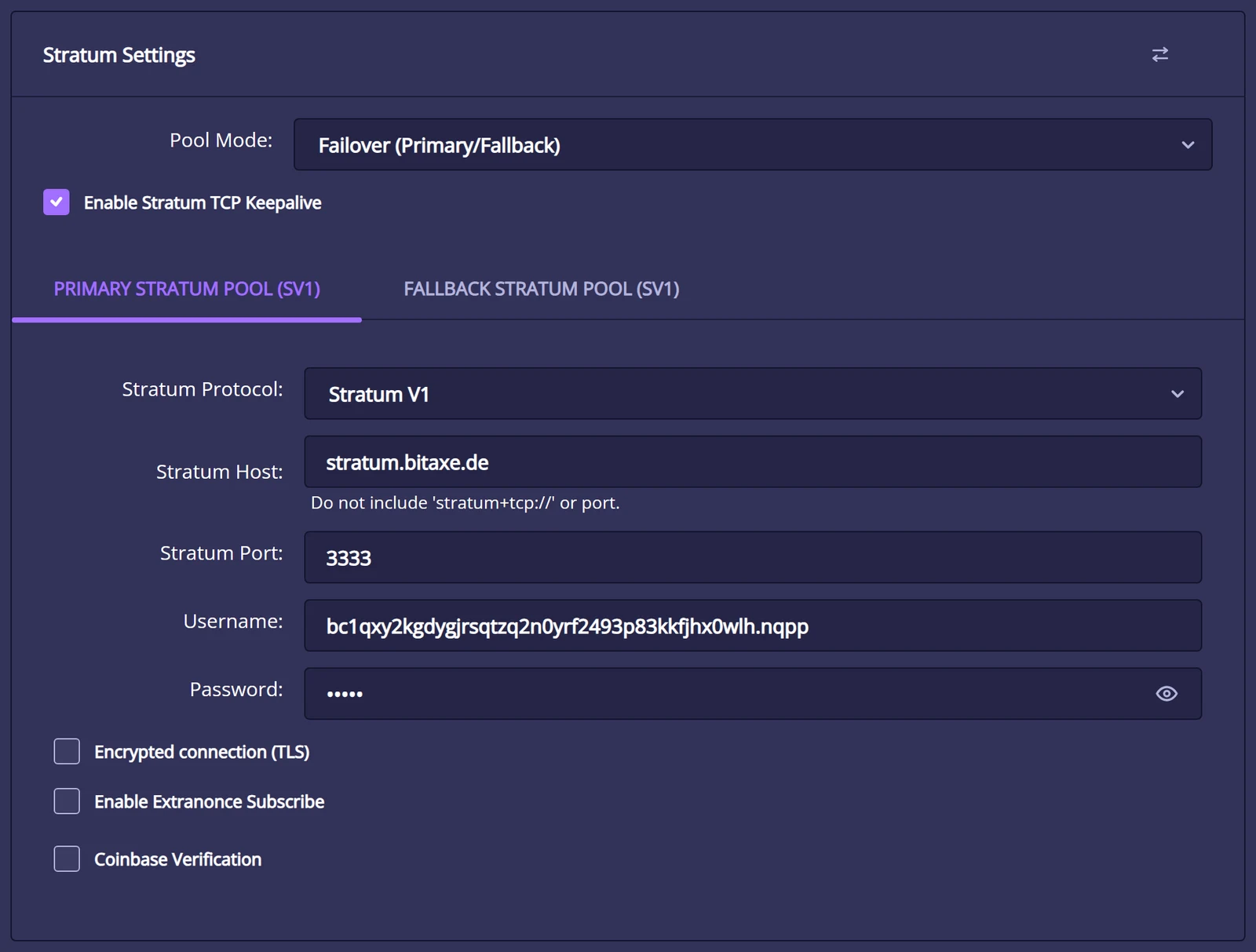
- Pool details: under Settings in the “Stratum Settings” card with Stratum Host, Stratum Port, Username and Password. The hint below the host says it itself: “Do not include 'stratum+tcp://' or port.”
- Fallback: in pool mode “Failover (Primary/Fallback)” NerdOS jumps to the second tab when the primary pool fails. The fallback is empty by default.
- Pool tile: if a pool cannot connect, the dashboard shows “Stratum not connected for this pool.”
- Logs: on the System page under “Realtime Logs”, with “Download Logs”. Typical lines are “stratum.bitaxe.de couldn't be resolved!” (DNS), “Socket unable to connect to stratum.bitaxe.de:3333 (errno …)” (port, router) and “Failed to receive JSON-RPC line, reconnecting ...”. NerdOS retries every ten seconds.
- No pause, but a watchdog: if NerdOS gets no response to a share for an hour, it restarts the device. The System page then shows “Task watchdog reset” under “Last Reset Reason”.
- Address: the official NerdOS firmware fills in the developer’s donation address by default, OSM-OS for Nerd devices the address ending in
.osm. There is no warning like in AxeOS. With “Coinbase Verification” NerdOS checks whether your address is in the coinbase and colours it green on the dashboard. - Heat and power: above the “Shutdown Temperature” (70 °C by default) NerdOS switches the chips off, the display shows “MINER OVERHEATED” or “VREG OVERHEATED”, and it only continues after a restart. With power supply problems the display shows “PSU FAULT”, “CURRENT PROTECTION” or “VOLTAGE PROTECTION”; after a voltage drop the System page lists “Brownout reset” as the reset reason.
Setup step by step is covered in the NerdQaxe setup guide and the Nerdaxe Gamma setup guide.
The checking order at a glance
- Read the dashboard: hashrate, fan and the notices at the top, and match them with the table at the beginning.
- Pool page: check host, port, protocol, User and Password in the primary entry, then Save and Restart.
- Check the address in every entry, including the fallback. Is the yellow warning gone?
- Read the Logs page with the filter
stratumand look the line up in the table above. - Port test from a computer, then test the router’s protection features one at a time.
- Check DNS filters such as Pi-hole or AdGuard.
- Wi-Fi: 2.4 GHz, signal strength on the System page, firmware 2.15.1 or newer.
- Look at power and temperature on the Power and Heat cards.
- Cross-check on pool.bitaxe.de with your address.
The miner troubleshooter walks through the same questions click by click. If you get stuck, write to our support and attach the downloaded logs and a screenshot of the dashboard. For the setup itself, see the Bitaxe setup guide and setting up the Bitaxe Gamma 601; every indicator is explained in AxeOS explained.
Frequently asked questions
Why is my Bitaxe not mining even though it is connected to Wi-Fi?
Why does my Bitaxe show 0 GH/s?
What does “Using fallback pool” mean in AxeOS?
What does “All configured pools unreachable, pausing mining to conserve power” mean?
Which pool settings do I enter for pool.bitaxe.de?
stratum.bitaxe.de, Stratum Port 3333, Stratum Protocol “Stratum V1”, your Bitcoin address under User (optionally with a dot and a device name) and x as Password. For Stratum V2 use port 3336 and the pool’s authority key. Then Save and Restart. Does my Bitaxe mine for me if I leave the presets unchanged?
.osm; a found block would go to that address. Enter your own address in every pool entry, including the fallback. For the factory address AxeOS shows a yellow warning, for the OSM address it does not. Can my router block mining?
Does the Bitaxe work on 5 GHz Wi-Fi?
Does this also apply to the Nerdaxe and NerdQaxe?

Read more
Nerdaxe Gaia: what the BM1373 miner can do, which firmware to run and who it is for
A single BM1373 in the familiar Nerdaxe format: factory settings from the source code, hashrate and power draw with every documented figure, the 12-volt power supply, OSM-OS from the flasher, setup, overclocking up to the current limit, block odds and electricity cost, plus a comparison with the Nerdaxe Gamma, Bitaxe GT and NerdQaxe++.
Guides & knowledgeSetting up Stratum V2 on a Bitaxe: encrypted solo mining in five fields
Since AxeOS 2.14 every Bitaxe speaks Stratum V2, and since September 2026 so does the Bitaxe Pool. This guide walks through the AxeOS fields one by one, shows how to set up the fallback and verify the connection, and lists what goes wrong when no shares arrive. For Bitaxe, NerdQaxe and large ASICs.
Guides & knowledgeNerdQaxe++ review: 4.8 TH/s from four BM1370, and who should upgrade from a Bitaxe
Four BM1370 on one board, 4.9 TH/s expected out of the box, about 76 W, two fans and NerdOS in the browser: we put the NerdQaxe++ in context. Factory values from the firmware, board revisions, noise, running costs, block odds, setup in NerdOS and the comparison with the Bitaxe Gamma, GT and 702, Copper Pro, Hydro, NerdQX and NerdOctaxe.