
Bitaxe firmware update: how to update AxeOS 2.15 safely, with flasher.bitaxe.de or in the dashboard
2 April 2026 · 16 min read · Updated on 11 October 2026

AxeOS is the firmware your Bitaxe uses to hash, run its fan and serve its web interface. It gets a new release every few weeks: support for new boards, Stratum V2, a pause function, better Wi-Fi compatibility, bug fixes. An update takes a few minutes and is harmless if you pick the right route and do not cut the power while it writes. Since AxeOS 2.15 something fundamental has changed: a Bitaxe now needs one file instead of two, and the previous version can be brought back with a click. Many guides online still describe the old procedure. This article covers the current state for Bitaxe and Nerd devices, both routes, the way back and the fixes for the cases where something goes wrong.
Firmware update right in your browser
flasher.bitaxe.de installs the right firmware over USB-C from Chrome, Edge or Opera. No download, no command line, and your settings are kept if you want.
esp-miner.bin, on the Nerd series use “Install from GitHub” or upload your model’s firmware plus www.bin from the same release. Current as of 2 October 2026: AxeOS 2.15.3 for the Bitaxe and Nerd firmware 1.1.0.1. Which version is running, and which is current?
The installed version is shown in AxeOS on the Update page in the left menu, right at the top as “Current Version”. Bitaxe and Nerd devices run on two branches of the same firmware family, which is why their version numbers differ. On top of that there are the optimized OSM-OS builds, which are based on these branches and preselected as our recommendation in the flasher.
| Firmware | Devices | Current version | Files for the update |
|---|---|---|---|
| AxeOS (ESP-Miner, bitaxeorg) | Bitaxe Gamma, Gamma Copper Pro, GT, Supra Hex 702 | v2.15.3 20 Sep 2026 | esp-miner.bin |
| OSM-OS for Bitaxe | same devices | v2.15.1-osm 12 Sep 2026 | esp-miner.bin |
| Nerd firmware (ESP-Miner-NerdQAxePlus) | Nerdaxe Gamma, NerdQaxe++, NerdQX, NerdOctaxe | v1.1.0.1 24 Sep 2026 | esp-miner-<model>.bin and www.bin |
| OSM-OS for the Nerd series | same devices | v1.1.0-osm 12 Sep 2026 | esp-miner-<model>.bin and www.bin |
| OSM-OS for the Gaia | Nerdaxe Gaia | gaia-v1.1.1-osm 23 Sep 2026 | esp-miner-NerdAxeGaia.bin and www.bin |
The releases are public on GitHub, for the Bitaxe in the repository bitaxeorg/ESP-Miner, for the Nerd series in shufps/ESP-Miner-NerdQAxePlus. Every release has release notes. Pre-releases are marked as such; only install them if you want to test a specific new feature.
What changed with AxeOS 2.15: one file instead of two
Up to version 2.14, AxeOS consisted of two parts that were updated separately: the firmware on the ESP32 (esp-miner.bin) and the web interface (www.bin), which lived in a partition of its own. Updating in the dashboard meant uploading both files, otherwise interface and firmware did not match and the dashboard showed empty fields or errors.
Since AxeOS 2.15.0 of 21 August 2026 the web interface is built into the firmware. The release notes say so explicitly: you no longer need to upload a separate www.bin when updating, and the releases no longer ship one. For you that means:
- One update, one file. In the dashboard you only upload
esp-miner.bin. The matching interface comes with it. - No more mismatch. Interface and firmware cannot drift apart because they sit in the same file.
- The previous version stays available. The Update page lists all firmware slots with their version under “Installed Firmware”. A click on “Activate” restarts the miner with a previously installed version.
- Custom interfaces are still possible. The Update page has a “Custom Frontend” card with the switch “Enable custom web UI”. Only when it is on does the field for your own
www.binappear. After every firmware update and every switch via “Activate”, AxeOS turns the custom interface off automatically so nobody gets stuck with a mismatched one. - There is a recovery page. At
http://MINER-IP/recoveryyou can turn a custom interface off (“Disable Custom Web UI”) or upload awww.bin, even when the dashboard no longer loads.
The Nerd firmware has not taken this step yet. Its releases still contain one firmware file per model plus a shared www.bin. For Nerdaxe, NerdQaxe, NerdQX and NerdOctaxe the two-file route described further down still applies. In return, the Nerd firmware can update itself from GitHub.
When an update is worth it
A miner that runs stably does not need an update just because one exists. It is worth it when the release notes contain something that affects you. The most important changes in recent Bitaxe versions:
| Version | Date | What it brings |
|---|---|---|
| 2.14.0 | 4 Jun 2026 | Stratum V2, pause and resume mining by button and API, customizable dashboard, log download |
| 2.14.1 | 19 Jun 2026 | Support for board revision Gamma 603, editing devices in Swarm fixed, self-test warm-up temperature configurable |
| 2.14.2 | 8 Jul 2026 | Fixes a crash caused by a race condition, frequency falls back to default during self-test |
| 2.15.0 | 21 Aug 2026 | Web interface built in, dashboard reachable by device name (mDNS), list of installed firmware with switch-back, multi-line charts, better undervoltage display, Bluetooth LE, more pools to choose from, Stratum V2 improvements |
| 2.15.1 | 29 Aug 2026 | Fixes connection problems with routers in mixed WPA2/WPA3 mode, corrects IP addresses in the Swarm view |
| 2.15.2 | 18 Sep 2026, pre-release | Driver for the BM1372 and BM1373 chips, support for the Naja Duo and Gamma Hex boards, prevents reconnect storms from slow clients |
| 2.15.3 | 20 Sep 2026 | Fixes the low-frequency warning, which now follows the device presets |
Concrete reasons to update: you want to set up Stratum V2 (from 2.14.0), pause your miner from home automation (from 2.14.0), you own a Gamma 603 (from 2.14.1), your router runs in mixed WPA2/WPA3 mode and the miner drops Wi-Fi (fixed in 2.15.1), or you want to open the dashboard by the miner’s name instead of its IP (from 2.15.0). If your miner still runs a version before 2.14, updating is worth it in any case, because many stability fixes have appeared since.
Preparation: three minutes that save trouble
- Note your values. Write down the hourly average hashrate, ASIC temperature, frequency and voltage, or take a screenshot of the dashboard. That way you can tell after the update whether anything changed.
- Note your pool data. Host, port, Bitcoin address and password are kept during a normal update. A factory reset erases them, and then you need them. Our pool configurator rebuilds the values for our pool at any time.
- Undo overclocking. If you raised frequency or voltage, set the factory values before updating (Gamma: 525 MHz and 1150 mV). New versions occasionally change the steps; on factory values the miner starts safely.
- Stable power. The update writes to flash memory. A loose plug or a power supply at its limit is a bad idea right now. The values your model needs are in power supply for Bitaxe.
- One change at a time. Do not change anything else during the update, neither pool nor clock. If something is off afterwards, you then know why.
Route 1: with flasher.bitaxe.de (recommended)
flasher.bitaxe.de is our web flasher and the easiest route for every device we carry. It detects your miner over USB, loads the firmware from the official releases on GitHub, only offers files that match your device and writes them to the miner over USB-C. You need neither Python nor the command line, and you never have to hunt for a file. Because it works through the browser’s Web Serial interface, it runs in Chrome, Edge and Opera on desktop. Firefox, Safari and phone browsers do not support that interface; there the flasher offers the matching files for download, and you use route 2.
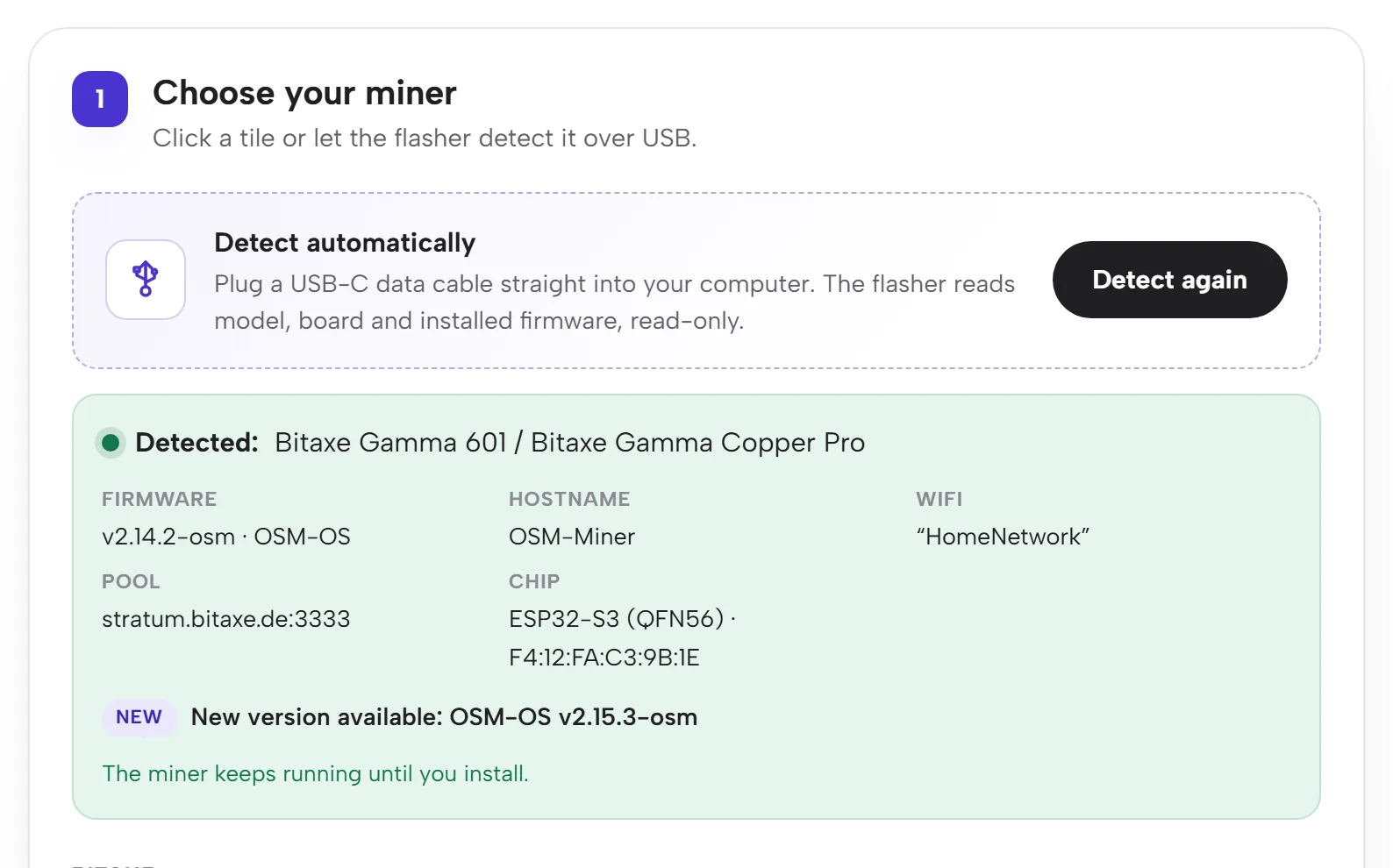
Step by step
- Connect the cable. Plug the miner straight into the computer with a USB-C data cable, no USB hub. A charge-only cable does not carry data. The miner can keep running on its own power supply.
- Connect the miner. Click “Connect miner” and pick the serial port in the browser dialog. Depending on the board it is called “USB JTAG/serial debug unit”, “CP210x” or “CH340”. The flasher reads model, board, installed firmware, hostname, Wi-Fi and pool without writing anything. It then selects device and board by itself and shows whether a newer version exists. After reading, the miner starts normally and keeps running until you install. Instead of connecting, you can also click your device’s tile.
- Choose the firmware. Preselected is OSM-OS, marked “Recommended”: an open-source build based on AxeOS with optimized defaults by Bitaxe.de, with source code and changes public on GitHub. If you want the unmodified official release, choose AxeOS original. Below it is the version, preset to the newest stable one. Pre-releases appear if you switch on “Show beta versions”.
- Choose the install type “Update”. The default is the factory reset, which reinstalls the firmware completely and erases Wi-Fi, pool and address. For a normal update, click Update instead. The flasher then writes only the firmware and, for releases up to 2.14, the web interface. The settings storage with Wi-Fi, pool, Bitcoin address, clock and voltage is left alone.
- Click “Install now”. Beforehand, the summary shows device, firmware, installed version, install type and the file to be written once more. If you did not connect the miner before, the browser now asks for the port.
- Wait. The flasher downloads the file, checks its SHA-256 checksum against the GitHub release, writes it and then verifies the flash contents. Then the miner restarts and is back on the network after about 30 seconds, usually under the same IP address. “Open AxeOS” takes you straight to the dashboard. After an update it resumes hashing right away.
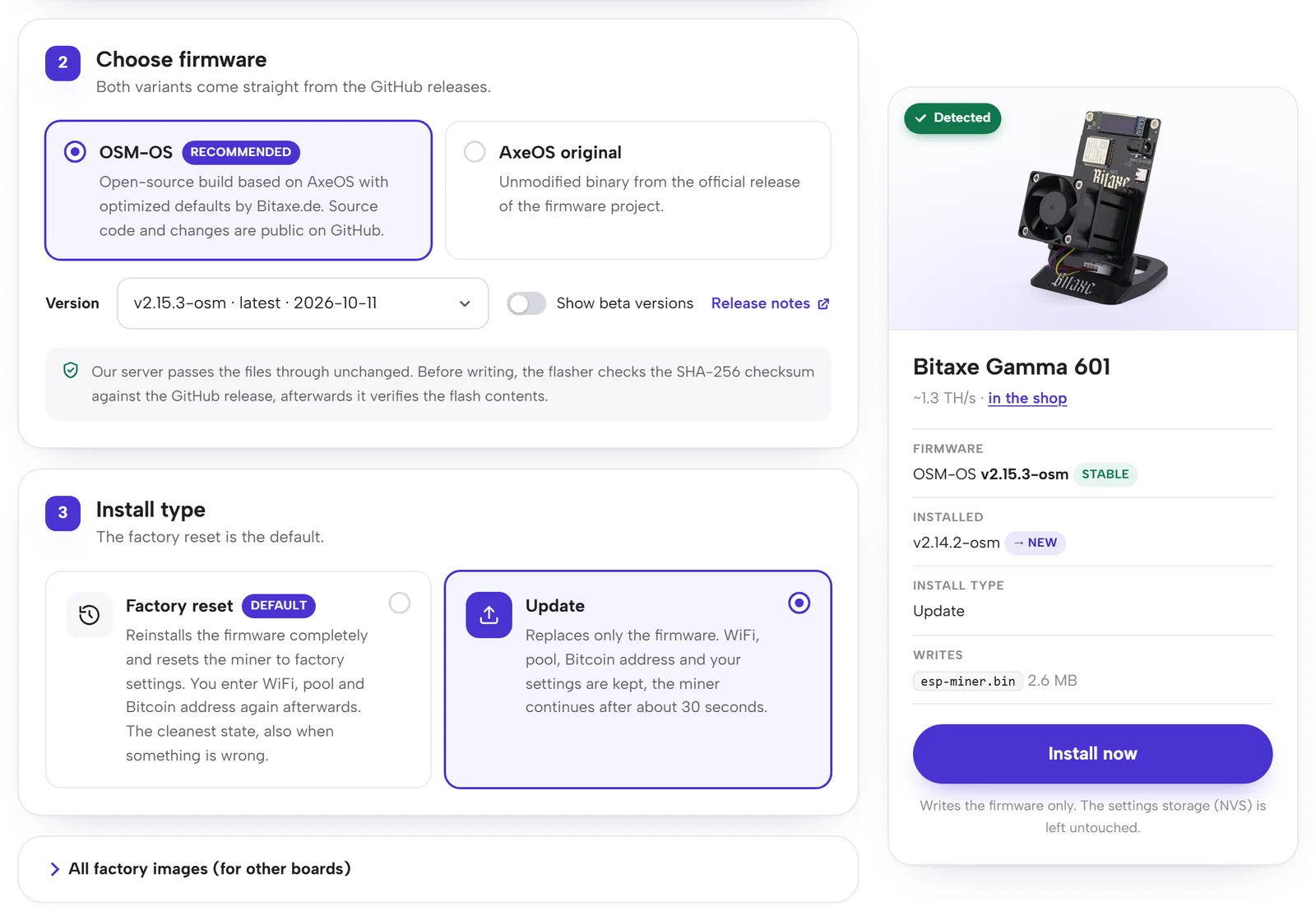
Factory reset or update
The flasher knows two install types. The update writes the firmware to its place in memory, for releases with a separate interface also the www.bin, and leaves the area with your settings untouched. The factory reset erases the whole flash and writes the complete factory image; afterwards the miner is in its delivery state. It then opens its own Wi-Fi (for example Bitaxe_XXXX), through which you enter Wi-Fi, pool and address again, as described in the setup guide. At the end the flasher shows you the exact name of that Wi-Fi and the settings it read before erasing.
The factory reset is preselected. It gives the cleanest state and is the right choice when the miner no longer starts after an update, when you want to pass it on and erase all data, or when the wrong firmware was written by mistake. For a normal update you do not need it. If a device has no update package in the chosen channel, the flasher says so and only offers the factory reset.
Gamma 602, 603 and other revisions
On the Bitaxe, esp-miner.bin is the same file for every board. Which board revision you have is stored in the device’s settings storage, not in the firmware. An update therefore keeps the revision, whether your Gamma is a 601, 602 or 603. A factory reset is different: it writes the factory image of one specific board. Below the Bitaxe Gamma tile you pick the board for it, 601 or 602; after “Connect miner” the right one is already selected. If the connected board does not match the chosen image, the flasher asks before writing. For the Gamma 603 the releases do not contain a factory image of its own yet; if the flasher detects a 603 board, it switches to “Update”. Boards without a tile of their own are listed under “All factory images (for other boards)”.
When the flasher finds no device
- Try another cable. Many USB-C cables that charge phones do not carry data.
- Plug in directly at the computer, not into a hub, dock or monitor.
- On Windows the driver for the serial bridge is sometimes missing, CP210x or CH340 depending on the board. Install the driver, restart the browser.
- Only one program can use the port at a time. An open terminal program or a second browser tab with a flasher blocks it.
- If no port appears at all or the miner no longer starts, use recovery mode, which the flasher explains under “Miner does not start or is not found?”: disconnect the miner from power completely, hold the BOOT button on the board, plug the USB cable and the power supply back in and release after two seconds. The ESP32 starts in flash mode this way, the display stays dark. Then click “Connect miner” and run a factory reset; recovery mode only allows that. If the display shows “BITAXE SELF-TEST” instead, the button was pressed only after power-on; disconnect the power and try again.
Route 2: update in the dashboard, no cable
The dashboard update works in any browser, including on a phone, and needs no USB cable. The only requirement is that you can reach the miner’s web interface. The procedure differs between Bitaxe and the Nerd series.
Bitaxe from AxeOS 2.15: only esp-miner.bin
- Open the web interface via the miner’s IP address and click Update in the left menu.
- Next to “Latest Release” click Check. AxeOS warns that this connects to github.com; confirm with “Continue”. You then see the newest version, a link to its release notes and a download link for
esp-miner.bin. - Download the file. If you use OSM-OS, download
esp-miner.binfrom the current OSM-OS for Bitaxe release instead; the file name is the same. - In the Update Firmware card click “Browse” and choose the file. The upload starts immediately. AxeOS shows “Uploading” with a percentage, then “Applying update” and a reminder not to cut the power.
- Wait about a minute until the miner has restarted, then reload the page in your browser. The release notes ask for this too, because otherwise the browser may still show the old interface from its cache. The new version number then appears under “Current Version”.
You do not need the “Custom Frontend” card next to it for a normal update. It is only meant for customized interfaces.
Bitaxe with AxeOS up to 2.14
If your Bitaxe still runs 2.14 or older, you still upload only the current version’s esp-miner.bin, in the firmware field. The new firmware brings its own interface and starts with it, regardless of what was in the interface partition before. Reload the page after the restart. The old rule of uploading www.bin and esp-miner.bin only applies when you move between two versions up to 2.14, for example when going back to an older version.
Nerdaxe, NerdQaxe, NerdQX and NerdOctaxe
The Nerd firmware can update itself. Under Settings there is a “Release & Update” card:
- Under “Select release” choose the version you want; the newest is preselected. Pre-releases only appear with “Show pre-releases”.
- If you like, open the release notes with the changelog toggle.
- Leave “Keep Settings” ticked. Without it, the update resets the configuration to factory defaults.
- Click “Install from GitHub”. The miner downloads firmware and web interface by itself, writes both and restarts. If you enabled two-factor protection under “Security”, it asks for the six-digit code first.
Updating by hand has been deliberately hidden since version 1.1.0, because the two-file route was often only half completed. The “Legacy Update” card only appears once you click the barely visible warning triangle next to “Mining Settings” on the settings page (tooltip “Danger Zone”). It contains “Manual Firmware Upload” and “Manual WWW Upload”. You need two files from the same release, and their names must match exactly: your model’s firmware and www.bin. If only one of them has been written, the interface reports “Version mismatch”; then upload the second one.
If your Nerd device runs OSM-OS, the update page shows two cards: “Release & Update OSM” for the OSM-OS builds and “Release & Update NerdOS (official)” for the originals. Switching to the official firmware there is one click; going back to OSM-OS only works with flasher.bitaxe.de, because the official firmware does not accept files from other sources.
| Device | Firmware file in the release | Plus |
|---|---|---|
| Nerdaxe Gamma | esp-miner-NerdAxeGamma.bin | www.bin |
| NerdQaxe++, Copper Pro, NerdQaxe++ Hydro | esp-miner-NerdQAxe++.bin | www.bin |
| NerdQX | esp-miner-NerdQX.bin | www.bin |
| NerdOctaxe, NerdOctaxe Hydro | esp-miner-NerdOCTAXE-Gamma.bin | www.bin |
| Nerdaxe Gaia | esp-miner-NerdAxeGaia.bin from OSM-OS for the Gaia | www.bin |
What matters is that firmware and www.bin come from the same release and that the firmware file matches your model exactly. Another model’s file drives display, fan and voltage regulator incorrectly. Setting up the Nerd devices from scratch is covered in our guides for the Nerdaxe and the NerdQaxe++.
Going back to an older version
Sometimes a new version runs worse for you, or a pool behaves differently with it. Then you go back. There are three ways.
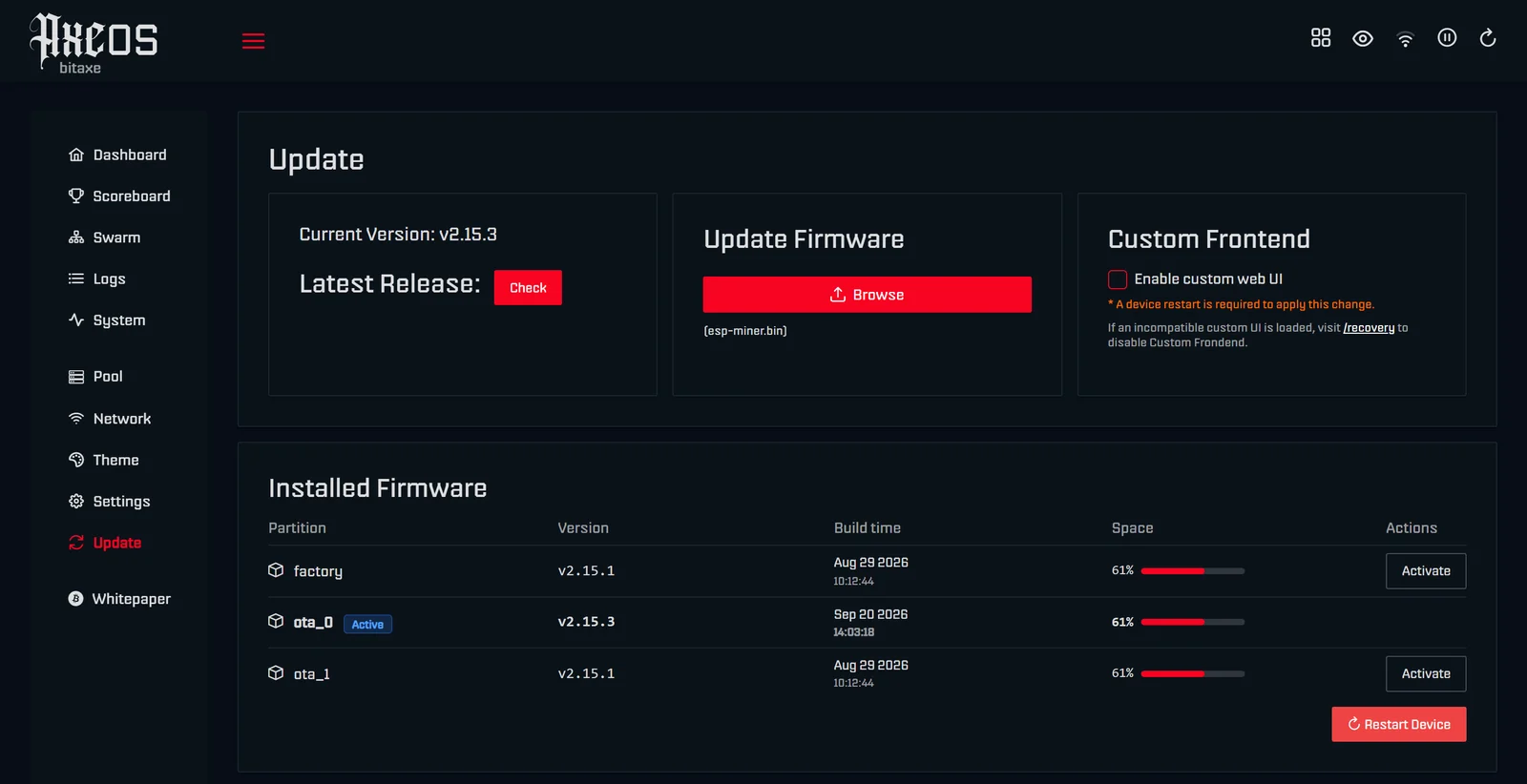
- With a click in the dashboard (Bitaxe from 2.15). On the Update page, the “Installed Firmware” table shows the slots
factory,ota_0andota_1with version and build date. A dashboard update always writes to a slot that is not active, so the previous version is kept. Next to it is “Activate”; one click restarts the miner with that version. Settings are kept. - With flasher.bitaxe.de. After choosing the device, pick an older version under “Version”, install type “Update”, “Install now”. This works for every version still in the releases.
- With a file in the dashboard. Download the
esp-miner.binof the version you want from the releases and upload it like an update.
There is one special case when going from 2.15 back to 2.14 or older. The older versions do not have their interface built in; they read it from the separate partition. That partition still holds whatever was installed last before 2.15. If that interface does not match the older firmware, the dashboard shows errors or empty fields. In that case also upload the www.bin from the older version’s release, via the old version’s Update page or via /recovery. The flasher does this automatically with the install type “Update”, because for releases up to 2.14 it writes both files.
After the update: check three values
Let the miner run for an hour and then compare with your notes. The hourly average hashrate should be within about ten percent of the previous value, the ASIC temperature below 65 °C, and the “Error” value next to the hashrate should stay low. AxeOS itself describes it as the share of faulty hashes reported by the ASIC: a few errors every few seconds are normal, a clearly higher value than before the update points to too high a clock, too little voltage or a weak power supply. If these three values are right, the update is done. What each readout means is explained in AxeOS explained, and why the hashrate error fluctuates is covered in hashrate error on the Bitaxe.
If the dashboard shows new charts, a different list of frequency steps or new warnings after the update, that is not a fault. New versions occasionally change defaults or point more clearly to undervoltage and low frequency. Compare with your notes, not with your memory. Only set overclocked values again once the miner runs stably on factory values, and then step by step following our overclocking guide.
When the miner does not answer after the update
- Dashboard unreachable: wait two minutes, then reload the page. If the display shows a different IP address, the router assigned a new one; use that. From 2.15 you can also open the dashboard by the miner’s name, for example
http://bitaxe.localif its hostname is “bitaxe”. - Dashboard loads but looks old or broken: first reload the page so the browser does not show an old interface from its cache. If that does not help, on AxeOS from 2.15 open the recovery page
http://MINER-IP/recovery, choose “Disable Custom Web UI” and then “Restart”. On versions up to 2.14 the matchingwww.binis missing; upload it on the recovery page or write it with the flasher. - Miner keeps restarting: usually overclocked values do not suit the new version, or the power supply sags under load. First write the firmware again with flasher.bitaxe.de as an update. If that does not help, run a factory reset and then enter Wi-Fi, pool and address again. If the miner does not start at all, the flasher’s recovery mode leads you to the factory reset.
- The update aborts: check the file: right model, fully downloaded, not renamed. Then try again. With the flasher the question of the right file does not arise, and it checks before writing whether the file is a valid firmware and fits its partition.
- Wi-Fi no longer connects: if your router runs in mixed WPA2/WPA3 mode, update to at least 2.15.1, by cable with the flasher. Otherwise Bitaxe not mining despite Wi-Fi will help.
- Hashrate lower than before: set factory values, measure for an hour, only then overclock again. If it stays low, check temperature and power supply. If the new version is clearly the cause, switch back to the previous one with “Activate”.
If a problem remains, the miner troubleshooter walks you through the remaining cases step by step.
Message “versions do not match” after the update
Right after updating to 2.15, the dashboard sometimes shows this warning at the top:
Firmware (v2.15.1) and AxeOS (unified) versions do not match. Please make sure to update both www.bin and esp-miner.bin.
The firmware is installed correctly all the same. The warning comes from the old interface up to 2.14: it compares the version number of the firmware with the version number of the interface. Since 2.15 the interface is part of the firmware and reports itself as “unified”, so for the old interface the two values never match. The new interface no longer runs this check. If you see the message, your browser is still running the old page, usually because the tab you uploaded from is still open.
- Reload the page. If that does not help, reload without the browser cache (Ctrl+Shift+R, on a Mac Cmd+Shift+R) or open the miner’s IP in a private window. “Current Version” then shows the new number and the warning is gone.
- Do not upload a www.bin. The advice in the message dates from before 2.15. Current releases no longer contain a
www.binat all. - If the brackets show a version number instead of “unified”, for example “AxeOS (v2.14.0)”, a custom interface is active. Turn off “Enable custom web UI” on the Update page, or choose “Disable Custom Web UI” on the recovery page
http://MINER-IP/recoveryand restart. - If a firmware up to 2.14 is running, for example after going back to an older version, and the message names two different numbers, the matching
www.binreally is missing. It has to come from the same release as the firmware; flasher.bitaxe.de writes both to the miner in one pass.
Update safely: only from known sources
The firmware controls the chip’s voltage and clock and knows your Bitcoin address. So only install files from the official releases: bitaxeorg for the Bitaxe, shufps for the Nerd series, and the OSM-OS builds offered by flasher.bitaxe.de. A .bin file from a forum or a chat can contain anything, up to a foreign address that receives the reward if a block is found. The flasher only loads files from the releases of these repositories and passes them through unchanged. Before writing it checks the SHA-256 checksum against the GitHub release as well as the file’s header and size, afterwards the flash contents. AxeOS itself only answers dashboard and API requests from private network ranges; an update from the internet is not possible unless you open the miner to the outside with port forwarding yourself. You should not do that. What else protects your miner is covered in our Bitaxe security guide.
Checklist
- Read the current version on the Update page and compare it with the table above.
- Check in the release notes whether the new version brings something you need.
- Note values and pool data, undo overclocking.
- Flash with flasher.bitaxe.de, install type “Update”. Or in the dashboard: on a Bitaxe from 2.15 only
esp-miner.bin, on the Nerd series “Install from GitHub” or firmware andwww.binfrom the same release. - Do not cut the power while it writes, reload the page afterwards.
- After an hour compare hashrate, temperature and hashrate error.
- Only then set overclocked values again, step by step.
Which AxeOS version is current?
Do I still need www.bin on a Bitaxe?
Are my settings kept during the update?
What is the difference between OSM-OS and AxeOS original?
Which browser do I need for flasher.bitaxe.de?
What do I choose in the flasher for a Gamma 602 or 603?
How do I go back to the previous version?
How long does a firmware update take?
What is the /recovery page?
How do I update a NerdQaxe++?
The flasher does not find my miner. What now?
How often should I update?
Matching products


Read more
Bitaxe security: AxeOS login and password, home network, hotspot and remote access
AxeOS never asks for a password: anyone on the same network can change the pool and the payout address. Which gaps are open as of October 2026, how to separate the miner on your home network, reach it without port forwarding and notice a foreign address right away.
Guides & knowledgeMonitoring a Bitaxe: catch outages, heat and wrong payouts without false alarms
Which values the AxeOS API really delivers, when “no share for …” is a real outage, why a Bitaxe runs slower for good after overheating, and how a small script on your home network watches heat, power, fallback pool and coinbase.
Guides & knowledgeNerdaxe Gaia: what the BM1373 miner can do, which firmware to run and who it is for
A single BM1373 in the familiar Nerdaxe format: factory settings from the source code, hashrate and power draw with every documented figure, the 12-volt power supply, OSM-OS from the flasher, setup, overclocking up to the current limit, block odds and electricity cost, plus a comparison with the Nerdaxe Gamma, Bitaxe GT and NerdQaxe++.