
Miner not working? Let’s find out why.
Pick what you see – we narrow it down to the cause and tell you exactly what to do. Works for every Bitaxe, Nerdaxe, NerdQaxe and NerdOctaxe.
What exactly is happening?
No sign of life
Which power supply is connected?
Included power supply, no reaction
- 1 Check the plug at the miner: the barrel plug must sit fully in, on USB-C devices the cable must click into place.
- 2 Try another socket – power strips with a switch are a classic.
- 3 Watch the power supply LED (if it has one): if it stays off, the supply is dead.
- 4 If everything stays dark, it is a warranty case – send us your order number and a short video.
Did not help?
Write to support – with your answers attachedWe pre-fill the message with the path you took, so you do not have to explain it again.
Own power supply, no reaction
- 1 Check the voltage: the small single-chip boards need 5 V, Bitaxe GT, 702, every NerdQaxe, NerdQX and NerdOctaxe need 12 V. A 12 V device will not start on 5 V.
- 2 Check the polarity of the barrel plug: positive must be on the inside. Reversed, the device stays dark – or breaks.
- 3 Check the current rating: the supply must deliver at least the amps printed on the miner.
- 4 When in doubt, test again with the supply that came in the box.
Did not help?
Write to support – with your answers attachedWe pre-fill the message with the path you took, so you do not have to explain it again.
Setup Wi-Fi missing
Has the miner been set up before?
The miner is already on your home network
- 1 That is normal: once a miner knows its home Wi-Fi, it no longer opens its own network. It is already on your network.
- 2 Its IP address is on the display; without a display, look in your router’s device list or open http://bitaxe.local.
- 3 To move it to a different Wi-Fi: enter the new network on the Network page in AxeOS and restart. If the miner can no longer find its old Wi-Fi, it opens the setup Wi-Fi by itself; on a Bitaxe you can also switch it on by holding the BOOT button for two seconds while it is running. Do not hold any button while plugging in, though, or it starts a service mode or self-test.
Did not help?
Write to support – with your answers attachedWe pre-fill the message with the path you took, so you do not have to explain it again.
New device, no own Wi-Fi
- 1 Hold your phone or laptop right next to the miner and refresh the Wi-Fi list. The network is called Bitaxe_XXXX, on Nerd series devices Nerdaxe_XXXX; the four characters are shown on the display.
- 2 Briefly switch off mobile data on the phone: some phones jump straight back because the miner network has no internet access.
- 3 Unplug the miner for a minute and plug it back in without pressing any button. The setup Wi-Fi appears after a few seconds.
- 4 If it still does not show up: factory install via the web flasher (untick “keep configuration”).
Did not help?
Write to support – with your answers attachedWe pre-fill the message with the path you took, so you do not have to explain it again.
Hash rate too low
How high is the ASIC temperature in the dashboard?
The miner is too hot
- 1 From 70 °C at the chip the dashboard warns. Above 75 °C at the chip or 105 °C at the voltage regulator AxeOS stops mining, sets the fan to 100 % and then carries on with 100 MHz less clock and 100 mV less voltage; the dashboard shows “Device has overheated”. That is protection, not a fault.
- 2 Give it air: no closed cabinet, no shelf compartment without exhaust, nothing on top of the fan.
- 3 As a test, set the fan to a manual 100 % in Settings: if the temperature still stays high, the heatsink is not seated properly or thermal paste is missing.
- 4 Overclocked? Back to factory values first, then improve the cooling. After an overheat, check Frequency, Core Voltage and Automatic Fan Control in Settings, because the protection changed all three.
Did not help?
Write to support – with your answers attachedWe pre-fill the message with the path you took, so you do not have to explain it again.
Cool, but still too little hash rate
- 1 Compare the hourly average (“1h”) with “Expected”: below 95 % of it something is off. Then check the error: permanently below 0.1 % is very good, occasional spikes are normal. If it rises permanently, the chip gets too little voltage for its clock or the power supply is at its limit – when overclocked, raise the voltage by 10 to 20 mV or lower the clock.
- 2 Check the power supply: a supply at its limit delivers less under load and the miner computes slower – without any temperature standing out.
- 3 After a restart the hourly average needs an hour to become meaningful. Since AxeOS 2.11 the current value comes straight from the chip and settles after a minute.
- 4 Restore factory values and watch for 24 hours before doubting the device.
Did not help?
Write to support – with your answers attachedWe pre-fill the message with the path you took, so you do not have to explain it again.
The miner keeps restarting
- 1 This is almost always the power supply: it sags briefly under load peaks and the device reboots – with the temperature staying perfectly normal. Use a supply with headroom, no USB hub, no thin cable.
- 2 Overclocked? Back to factory values. Too high a clock at too little voltage shows exactly the same way.
- 3 Wi-Fi drops do not trigger a restart – but if the miner searches for minutes after every restart, it is too far from the router.
- 4 If the dashboard shows “Danger: Low Voltage” or “Power Fault Detected”, it is definitely the power supply. Also keep the firmware up to date via the web flasher.
Did not help?
Write to support – with your answers attachedWe pre-fill the message with the path you took, so you do not have to explain it again.
Too loud or too hot
- 1 In Settings set the Target Temperature a little higher, for example 62 to 65 °C, or lower Minimum Fan Speed: the fan then spins up later. Below 65 °C chip temperature everything is fine.
- 2 Location: free air on all sides, not on carpet, not in the sun. Room temperature is the cheapest lever.
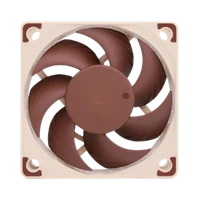
- 3 On the Gamma, swap the 40 mm fan for a Noctua NF-A4x20 (14.9 dB) – the biggest improvement for little money.
- 4 From the 4.8 TH/s class upwards a miner stays audible; there only another room or water cooling (Hydro models) helps.
Did not help?
Write to support – with your answers attachedWe pre-fill the message with the path you took, so you do not have to explain it again.
Web flasher cannot find the device
- 1 Browser: only Chrome, Edge or Opera on desktop can flash over serial. Firefox and Safari cannot – there only the update via the AxeOS interface works.
- 2 Cable: it has to be a data cable, directly on the computer, no USB hub. Charge-only cables never show up as a port.
- 3 Driver: if nothing appears in the port dialog, the serial bridge driver is usually missing on Windows – install CP210x or CH340 and restart the browser.
- 4 Port in use? No other program (Arduino IDE, terminal) may hold the port open.
Did not help?
Write to support – with your answers attachedWe pre-fill the message with the path you took, so you do not have to explain it again.