


AxeOS explained: dashboard, settings and the readings that matter on a Bitaxe
12 March 2026 · 9 min read · Updated on 22 August 2026

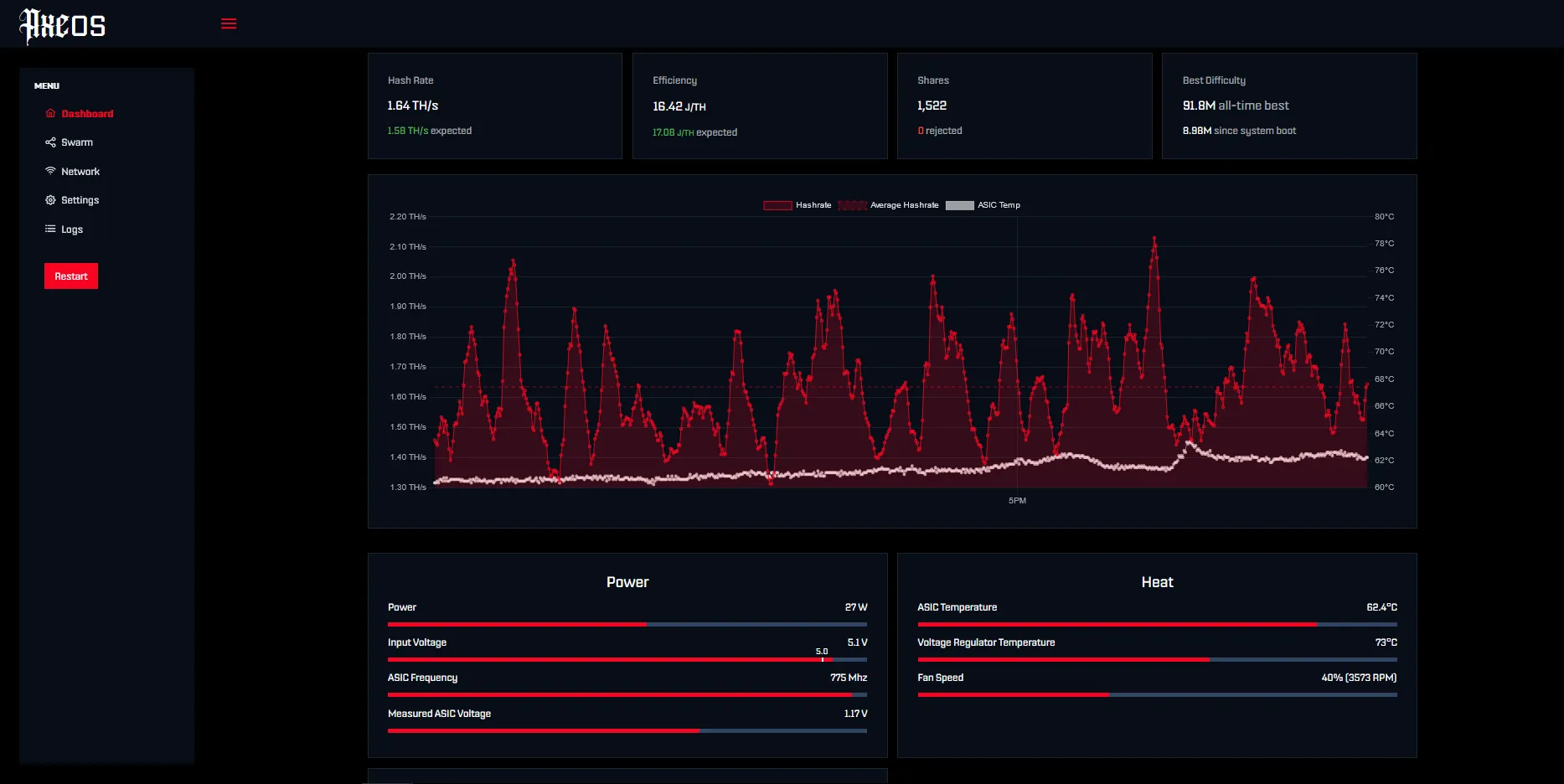
AxeOS is the web interface running on every Bitaxe, Nerdaxe, NerdQaxe and NerdOctaxe. There is no app and no cloud account: you open the miner’s IP address in a browser and see everything the device knows about itself. This article explains every reading in the dashboard using a real screenshot, names the values that are normal, and covers the settings you actually need as a beginner.
192.168.1.42); http://bitaxe.local works too. No password, no login – AxeOS is only reachable from your home network. The dashboard: four tiles, one chart, two panels
Hash Rate
The hash rate is not measured but extrapolated from submitted shares. That is why it jumps around so much in the chart – in the screenshot between 1.3 and 2.1 TH/s around an average of 1.64. What matters is the dashed line (average hash rate) and the comparison with the value underneath: “expected” is the hash rate the ASIC must deliver arithmetically at the set frequency. If the average sits more than 10 % below it for hours, something is off – usually too little voltage for the clock, heat, or a weak power supply. That deviation is the hash rate error.
Efficiency
Joules per terahash: power draw divided by hash rate, lower is better. A Gamma sits at around 14 J/TH at factory settings, overclocked as in the screenshot at 16–17 J/TH – more hash rate costs disproportionately more power. A Nerdaxe Gaia with the BM1373 manages around 10 J/TH. The number changes with every frequency and voltage change; it is the most honest value for comparing two settings.
Shares
Every share is a proof of work the pool has accepted. The number must keep rising – on our pool with a starting difficulty of 1,000 a Gamma sees shares within the first minute; on pools with a high starting difficulty it can take longer. Underneath is rejected: declined shares. Zero is normal, under 1 % is fine, more means stale work from unstable Wi-Fi, high latency to the pool, or an ASIC making calculation errors at its clock.
Best Difficulty
The hardest share your miner has ever found – “all-time best” across all restarts, underneath the value since the last boot. In the screenshot 91.8M. A block is found when a share reaches the current network difficulty, around 127T (127,000,000M). The value is pure statistics and says nothing about the miner’s health – but it is the reason solo mining is fun.
Power: draw, input voltage, frequency, ASIC voltage
| Reading | Normal | Act when |
|---|---|---|
| Power | Gamma at factory ~17 W, overclocked up to ~30 W; NerdQaxe++ ~80 W | The value is far below what you expect – then the ASIC has hung (restart) or the miner is in overheat mode |
| Input Voltage | 5.0–5.2 V on 5 V devices (Gamma, Copperzilla), 12 V on NerdQaxe | Below 4.8 V: power supply or cable too weak – the number one cause of restarts under load (power supply guide) |
| ASIC Frequency | Gamma at factory 525 MHz | You did not change it yourself and it reads 50 MHz, or the miner runs without load: overheat protection has triggered |
| Measured ASIC Voltage | Gamma at factory 1.15 V (1,150 mV), in the screenshot 1.17 V | More than 20 mV below the set value: voltage regulator at its limit |
Heat: ASIC temperature, voltage regulator, fan
| Reading | Normal | Act when |
|---|---|---|
| ASIC Temperature | Under 60 °C ideal (the auto-fan target), up to 65 °C good, 65–70 °C warm | From 70 °C the overheat protection kicks in: AxeOS throttles to a minimum (current firmware 50 MHz at 1.0 V with the fan at 100 %, older versions hold the chip in reset until it is below 45 °C). Then check cooling, airflow and thermal paste |
| Voltage Regulator Temperature | Up to 85 °C unremarkable, the regulator is rated for more | From 105 °C the same protection kicks in. High VR temperature with normal ASIC temperature means: voltage too high or no airflow over the regulator |
| Fan Speed | Auto: 30–60 % in a living room, here 40 % at 3,573 rpm | 100 % at normal temperature: auto mode off, or the fan reports no rpm (connector, broken wire) |
The overheat protection is not a defect but the emergency brake. AxeOS reports “Overheat” in the dashboard; after fixing the cause, reset the mode in the settings or restart once. Fans, heatsinks and placement are covered in Making a Bitaxe quieter.
The menu items
- Dashboard – the overview above.
- Swarm – watch several miners on the same network on one page. Enter the IP addresses once, then you see hash rate and temperature of all devices side by side.
- Network – Wi-Fi credentials and hostname. 2.4 GHz only; avoid special characters in the password.
- Pool Settings – host, port, user, password for the main pool and the fallback pool.
- Settings – frequency, core voltage, fan control, display, firmware update.
- Logs – the live log. With connection problems it says in plain text whether the pool answers, DNS resolution fails or a share was rejected.
- Restart – reboot in 5 seconds, settings are kept.
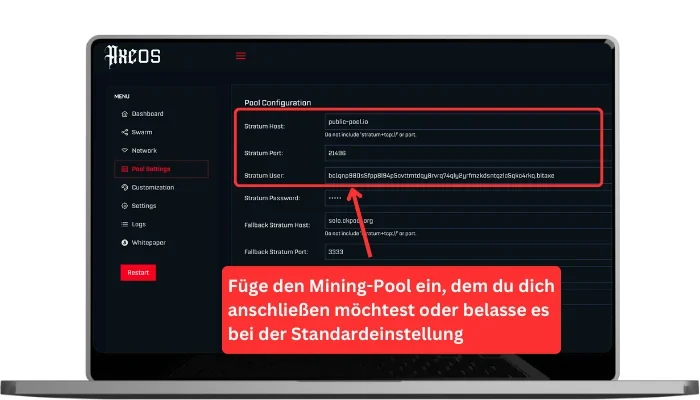
Pool Settings: the four fields that count
| Field | Enter | Typical mistake |
|---|---|---|
| Stratum Host | Only the hostname, e.g. pool.opensourceminers.de | stratum+tcp:// or the port in the host field – AxeOS says so right under the field: “Do not include stratum+tcp:// or port” |
| Stratum Port | The number from the pool, ours is 3333 | Port of the wrong pool (Public Pool uses 21496, Public Pool on Umbrel 2018) |
| Stratum User | Your Bitcoin address, optionally .workername | Lightning or exchange address; typos – always copy |
| Stratum Password | x | Left empty – some pools reject that |
The fallback pool takes over when the main pool does not answer; at factory it is solo.ckpool.org:3333. Enter your address there too – otherwise you mine for nobody during an outage. A second solo pool such as eusolo.ckpool.org (2 % fee) or public-pool.io:21496 makes a good fallback. The pool configurator provides the ready-made values for every pool; after each change Save and Restart.
Settings: what you may change – and what comes later
| Setting | Factory value Gamma | Recommendation |
|---|---|---|
| ASIC Frequency | 525 MHz | Only change once the miner has run stably for a week. Then in 25 MHz steps, guide: overclocking guide |
| ASIC Core Voltage | 1,150 mV | Belongs to the frequency: 25 MHz more needs around 20 mV more. Above 1,250 mV only with better cooling |
| Fan Speed | Auto, target 60 °C | Leave on auto. Manual only if the device must be quieter and the ASIC temperature still stays under 65 °C |
| Temp Target | 60 °C | Lowering to 55 °C in a living room means louder, raising to 65 °C means quieter – both within the safe range |
| Flip Screen / Invert Fan Polarity | off | Only when needed (display upside down, third-party fan without rpm signal) |
| Firmware update | – | Two files: esp-miner.bin and www.bin, in that order. Without hunting for files, use our web flasher |
How to see in 30 seconds that everything is running
- Shares rising, rejected at 0 or under 1 %.
- Average hash rate within 10 % of expected.
- ASIC temperature under 65 °C, voltage regulator under 85 °C.
- Input voltage not below 4.8 V (5 V devices).
- Uptime counting up – no restart you did not trigger yourself.
If one of these is off, the troubleshooter gets you to the cause in three clicks; the most common cases are in Bitaxe connected but not mining.
How do I open AxeOS?
http://bitaxe.local. There is no password; AxeOS is only reachable on your own home network. Why does the hash rate in the dashboard jump around so much?
Which temperature is normal for a Bitaxe?
What is best difficulty?
Do I have to fill in the fallback pool?
Can I open AxeOS while away from home?
Read more
Setting up the Bitaxe Gamma 601: a step-by-step guide to the first start
Setting up the Bitaxe Gamma 601: a precise step-by-step guide to Wi-Fi, AxeOS, pool settings, your Bitcoin address, monitoring, common mistakes and sensible next steps.
Guides & knowledgePaying with Bitcoin at Bitaxe.de: how to get 5% off
Want to order your Bitaxe and see the option to pay with Bitcoin at checkout? Perfect – that is exactly what we introduced the Bitcoin discount for.
Guides & knowledgeConnecting a Bitaxe to your own Bitcoin node: setting up Public Pool on Umbrel
Your own node, your own stratum server, a found block paid straight to your address: how to set up Public Pool on Umbrel and connect your Bitaxe – with all AxeOS values, storage and sync figures and the six mistakes we see most in support.